
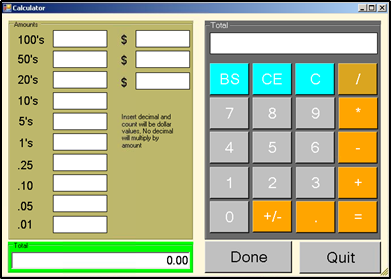
The calculator function helps to reduce error and allow employees to count the drawer in half the time. In Version 9 it is available during the opening and closing of an audit, during the Daily Close Out to enter the deposit, as well as from the Manager’s Menu.
Configuring the system to use the Drawer Calculator
- Go to the Managers Menu
- Select “Register Setup”
- Select “Register Options by Terminal”
- Select the “Printing/Cash Drawer” tab
- Select the checkbox for “Use Calculator”, located in the green “Cash Drawer Options” section at the top, right of the screen
- Select Save
Availability of the Drawer Calculator
The drawer calculator is now available:
- Starting an audit
- Closing an audit
- Entering a deposit on the Daily Close Out screen
- Within the Options List
Managers Menu > Options List > Select the down-arrow twice > Select “Show Calculator”
Using the Drawer Calculator
The new calculator will work in two different ways:
The first method is to enter an amount using the keypad but do not include a decimal. This will then multiply the amount entered by the field value you selected.
- Enter a number without a decimal using the calculator keypad such as “20”
- Select a field on the left side to place “20” into; such as the “.10” field
- The “.10” field is now multiplied by our “20” amount which gives us a total of “2.00”
The second method is to use the keypad to enter an amount with a decimal. This will act as a “count” and enter that exact number into the field selected.
- Enter a number with a decimal using the calculator keypad such as “20.00”
- Select a field on the left side to place “20.00” into; such as the “.10” field
- The “.10” field now shows “20.00” amount