
What it does:
This configuration is most commonly used in an environment where the employee placing the order is not the person closing the order.
In order for the system to still track sales/tips for the person placing the order and not tie them to the person physically closing the order, you must configure the system to cross track sales between audits. Let’s walk through an example below:
Example:
Employees:
- Billy the Bartender
- Suzie the Server
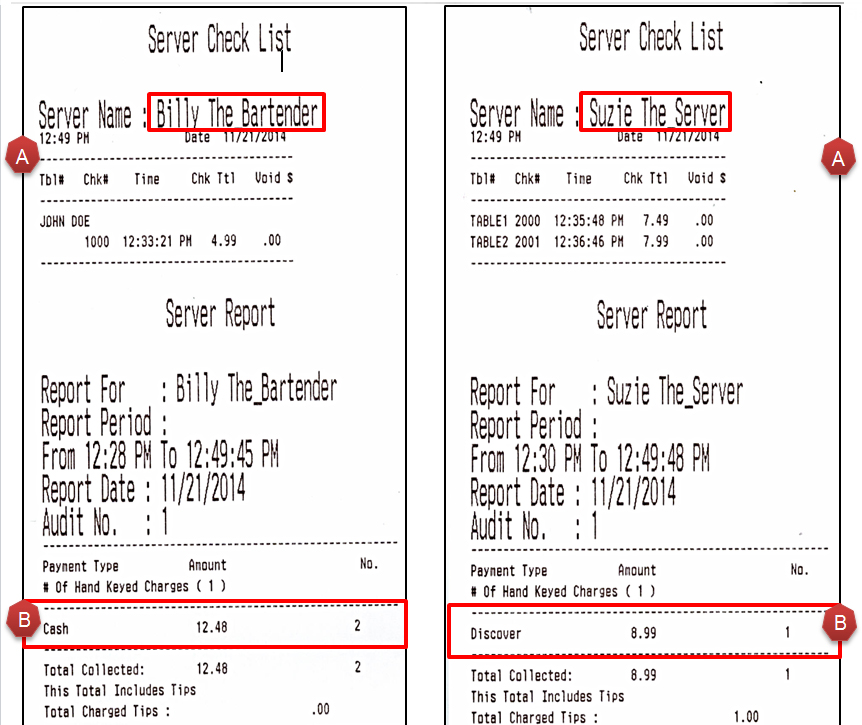
Suzie the server is waiting on tables in the dining room at Bubba’s BBQ. She inputs the items that customers wish to order into the system. When it is time to close the order, Suzie will take the payment to Billy the Bartender to close the order for her. The owner wants Suzie’s audit to reflect her own portion of the sales in the Dining Room but also would like Billy to be held accountable for the payment collection for Suzie’s tables on his audit. View Figure 1, Suzie the Server had two tables and Billy the Bartender had one tab.

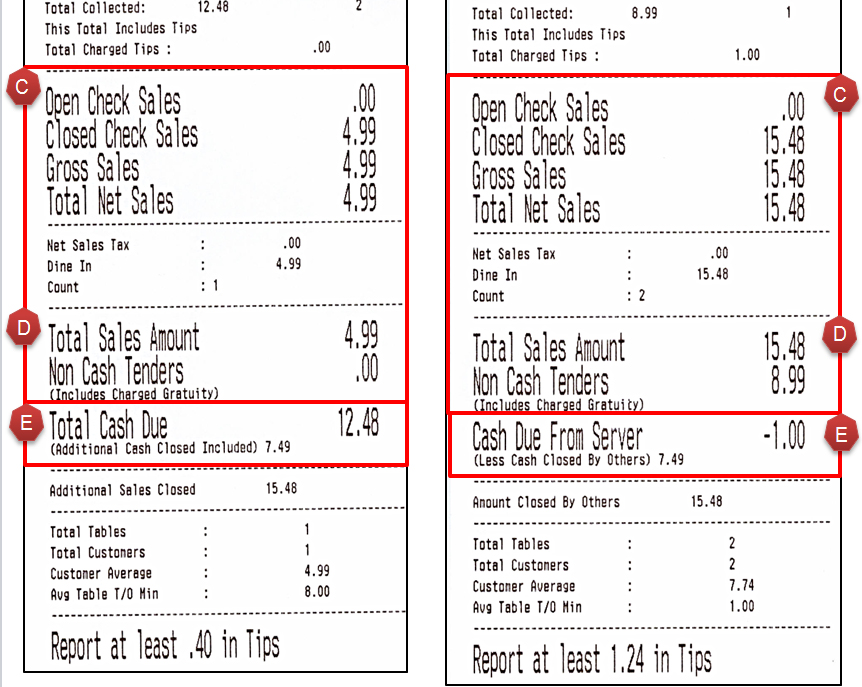
View Figure 2 which includes the breakdown of each employee’s audit. Review points A-E which we explain in detail below:
A) This section displays a list of all Tables or Checks that the employee entered. You will see the Table or Tab Name, the Check Number, Time that the check was closed, the Check Total, and the Void $ (if applicable). Notice that Billy has had one tab and Suzie had two tables.
B) This section displays a list of the payment totals with a breakdown by type. Notice, since Billy was the employee whom closed all checks, he is also the one showing all payments on his audit whereas Suzie, who closed no checks has no payments recorded.
C) This section displays the totals (Open check Sales, Closed Check Sales, Gross Sales, and Total Net Sales) for only the checks started by that specific employee. For instance, Billy’s audit only reflects $4.99 which is the total of his one tab (without tax added). It does not include any checks closed for other employees.
D) This section includes Total Sales Amount and the Non Cash Tenders for this specific employee, not including any checks closed for other employees
E) This section is the total of all checks closed by that specific audit.
How to configure:
The following steps will walk you through configuring the system to cross track sales between audits.
On each register perform the following:
- Log into the Managers Menu
- Select the “Register Setup” button
- Select the “Register Options” button
- Select the “Cashier Station” section, located at the bottom of the screen
- Select the checkbox for “Cross Track Sales Between Audits”
- Select the “Save” button
- Repeat Steps 1-6 on ALL terminals
Notes:
- If Billy the Bartender closed an order for Suzie the Server using a credit card, Suzie will still have the ability to use the “Apply Tip” button to add a tip to this check.
- Tip will show on Suzie’s audit and not on Billy’s
- REMEMBER TO DO Open/Close settings based off terminal. Looks like you have to also enable “cashier environment” to be able to use the check closing op.
- Can’t seem to enable cashier environment in quick bar mode but self-banking seems fine.