
To Figure out the Paid Out total:
- Go to the Manager’s Menu
- Select the “Sales Audit” button
- Select the name of the audit (the audit prints – showing you the “Tips Owed”)
- When prompted for closing the audit choose NO (the audit remains open, but a copy of it has now printed)
From the Ordering Screen:
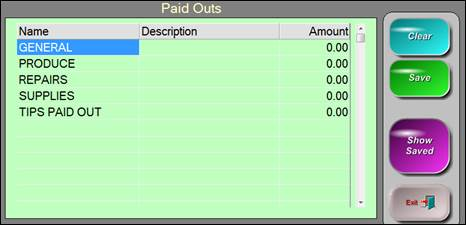
- Select the “Paid Out” function button (bottom, left of the screen)
- Find the “Tips Paid Out” line
- In the Description field enter the name of the employee you are paying a tip to
- Enter in the amount in the amount field (key pad will display on the screen)
- Save
When you have finished entering all paid out amounts you can close the audit how you normally would.
Also, the Daily Audit Summary report will be more helpful to you if you also enter audit deposits in. An audit deposit is simply the amount of cash you are turning in (minus your starting drawer amount) for your shift. These totals will show for each audit in the “Total CID” field and will adjust the over/short amount per person on that report.
To enter an Audit Deposit:
- Go to the Manager’s Menu
- Select “Sales Audit”
- Select “Enter Audit Cash Deposit”
- All audits from the day will show here, though the audit must be closed out in order to enter a deposit for it
- Find the name of the person you want to enter a deposit for and select the “Cash Deposit” field. A keypad displays stating “Enter Deposit”
- When you are finished entering in the deposit(s) select “Save Deposit”
