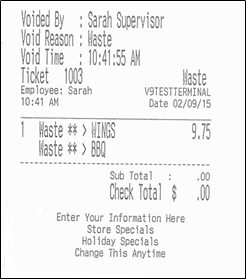
This works with the Inventory Module, and when used, it will track food costs based on the menu items’ recipe and current cost.
Configuring the system to utilize the Waste function
Option 2: Order Screen Function Button
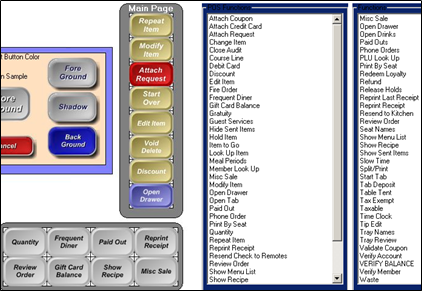
ID Screen > Register Setup > Setup/Configuration > Edit Order Screen Buttons
- From the right-most column labeled “Functions” select “Waste”
- Select an empty button from the “Main Page” vertical bar or either of the two horizontal bars.
- Note: If all buttons are full, you can double-click an occupied space to overwrite it with the “Waste” button instead.
How to use the Waste function
- Go to the Ordering Screen
- Select the Menu Item(s) you wish to mark as Waste
Note: This will mark the entire check of items as “Waste” so be sure to only have items on a check that you are sure you wish to mark as “Waste”.
- Select the Waste button
- The check will automatically close and print a Waste receipt
Viewing the Product Waste report
After the Daily Close Out is ran, you can print or email the “Product Waste” report.
- Go to the Managers Menu > Reports Menu > Product Waste
- Select a specific date or date range and then select “Run Report”