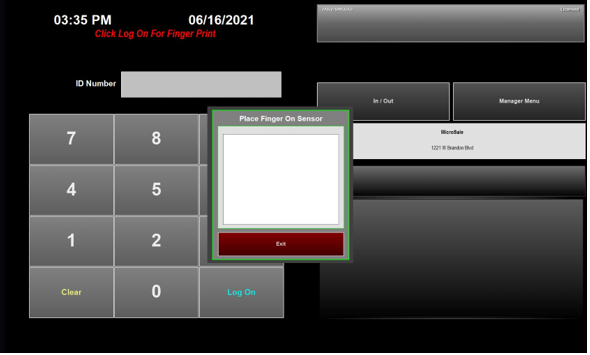
Setup for Fingerprint Verification
Part A: Installation:
1. Install U r U Platinum version 3.1.1 drivers on each terminal for the fingerprint reader.
2. After the drivers are installed, restart the terminal when prompted.
3. After the terminal restarts, attach the fingerprint reader to one of the USB ports and wait for the
message in Windows that says your new hardware is installed and ready to use.
Part B: Configuration:
Go to Manager Menu -> Register Setup ->Terminal Configuration -> Register Options and click on "Time Keeping" from the menu bar at the top of the screen.

4. (Required) "Finger print is required to log on to station" should be checked if you want all Employees and Managers to use Fingerprint Verification every time they log into Micro$ale from the ID Screen. After saving Register Options, exit to Windows and restart Micro$ale.
5. (Optional) "Finger print required to access managers menu" will require Fingerprint Verification for Manager functions and Employee Time Clock functions only. (Note, Step 4 must be done before Step 5 can be implemented.) After saving to Register Options, exit to Windows and restart Micro$ale.
Part C: Record Fingerprint Signature for Employees and Managers:
Go to Manager Menu -> Employee Maintenance -> Employee Maintenance again.
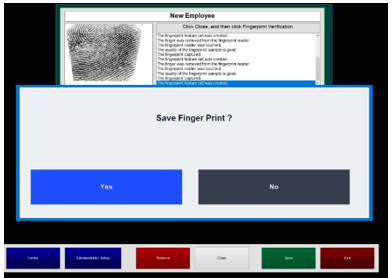
6. Select an existing employee, click on the Finger Print button that now appears on the bottom of the screen as shown below. Click on that button to open the fingerprint setup screen for the employee selected.

7. Once in the fingerprint setup screen, have the employee touch the fingerprint reader, then follow the onscreen prompts. Look for the Quality status report. The setup will require the employee to remove and reapply their finger to the sensor multiple times to complete the process. Once enough fingerprint data has been collected the screen will prompt you to Save Finger Print. This prompt indicates the scanning process is complete. Select "Yes" to save.
8. Repeat steps 6-7 for each employee.
ANY EMPLOYEE OR MANAGER WHO DOES NOT HAVE A FINGERPRINT SIGNATURE
REGISTERED WILL NOT BE PROMPTED TO VERIFY THEIR IDENTITY.
You can verify that an employee has a Fingerprint Signature registered by clicking on the Finger Print button in Employee Maintenance. It will say "Finger Print Registered" in the bottom left corner and the employee's name will show at the top of the window.
Once activated, Micro$ale will prompt the employee/manager for his/her fingerprint when he/she touches the "Log On" or "Manager Menu" button.