
Recommendations:
- Count your inventory at the same time every day/week. Counting inventory at a consistent time and day makes inventory more accurate and easier to regulate
- While you may decide to count your entire inventory weekly, certain items should be counted daily. In the original setup of the inventory, specific items are ticked for “counted daily”. You can go into the inventory setup and make changes at any time. Keeping track of your most expensive items everyday turns into large savings
- Before physically counting your inventory, generate printouts of the inventory items; the printouts are organized by physical location
In this article:
How to count inventory
How to edit count dates
How to count inventory
- Start by printing your inventory sheets.
- Go to Printing Menu > Print Inventory Sheet by Location
- Each sheet is organized by storage area; such as Cooler, Freezer, and Dry Storage
-
Go to each location and count each product on the list. Write down the quantity next to each item.
-
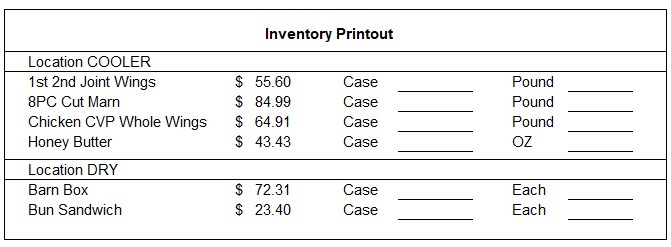
The printout lists inventory items alphabetically by location. The cost of a single case is displayed to the right of the item name (the cost is pulled from the last received invoice).
The printout lists both “Case” and the secondary unit of measurement for an open case.
-
Alternatively, you can weigh units for better accuracy. For instance, if you have one full case (20lbs) and an open case weighed at 10bs, enter (10) into the secondary “pound” column. This number is automatically calculated back into an accurate fraction of a whole case (1/2) as determined during initial setup.
-
-
After you have completed the physical count of your items, go back to the POS, and enter in the counts. Go to Inventory/Margins > Inventory Count (located on toolbar)
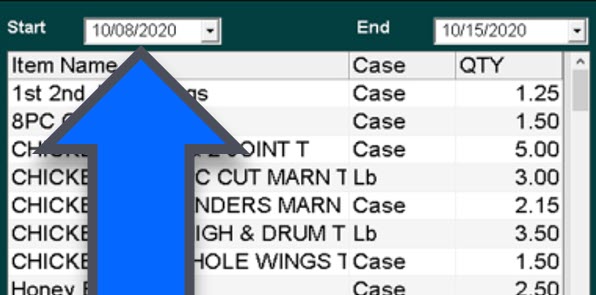
- Select the start and ending date. The start date is typically the day after your last inventory count and the ending date is today.Be mindful of the dates you select, it will affect your numbers!
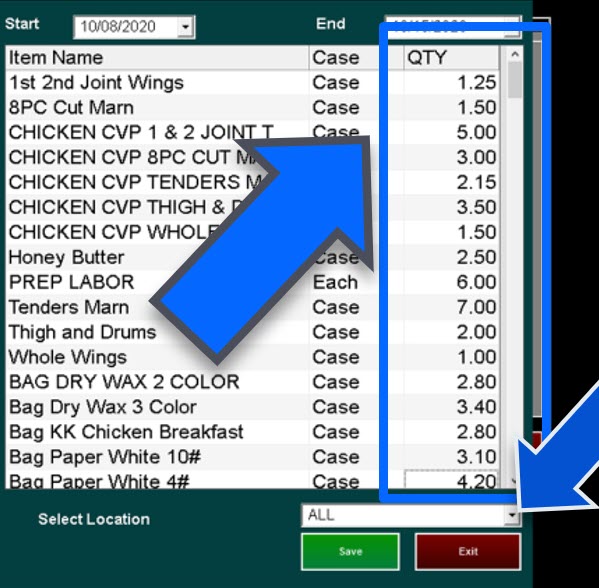
- Select the QTY column in each row to input the count. Inventory loads by location automatically; to filter items by specific location, select the dropdown next to "Select Location" on the bottom of the list.
Moving inventory count dates
If an inventory count was performed but not recorded in the inventory system, use Move Inventory Date to record the date that the inventory was physically counted.
- Go to Inventory > Inventory Counts (on toolbar)
- Select Move Inventory Date. This allows you to move the count date to when the items were physically counted.