
The LevelUp integration allows for payment processing without the need to provide credit card information to a restaurant. Simply let the QR scanner provided by LevelUp read your information, and it will apply the payment to your LevelUp account.
Getting Started
Prior to installation and registration, the LevelUp interface must be turned on in the MicroSale license file for the location.
Registration
After receiving the license file with LevelUp, you will need to register the interface on each POS terminal.
Registering the license on each terminal:
- Go to Managers Menu>Register Setup>Credit Card Setup
- Touch the LevelUp button to access the setup menu
- Type in the username and password provided by LevelUp and click the Register Site button (displayed below)
- After a successful activation, click Get Location Id(s) to populate the drop-down menu with store numbers (displayed below)
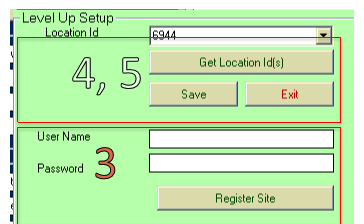
- Select the store number for the current location and press Save
- Exit
Installation
There are three files that need to be registered using the regasm.exe file located in the MicroSoft .Net Framework directory in Windows:
- dll
- tlb
- dll
The files are located in the C:\Program Files\MicroSale directory. Follow the steps below to register each file.
- Click Start> Run>and browse to C:\ Windows\Microsoft.NET\Framework\v2.0.50727\RegAsm.exe then touch “Open”
- Drag C:\Program Files\MicroSale\(filename) to the run line and click “OK”
For best search results, Level Up is another key word.