
You can disable or ignore timed event pricing (happy hour pricing) for to go orders, delivery and/or pick up orders.
Part A
Disable/ignore the timed events for to go's:
Managers Menu > Register Setup > Terminal Configuration > Register Options > Full Service > check the option Turn off timed pricing for go orders
NOTE: "Go Order" is referred to the order destination where the user chooses "Dine In" or "Go Order". A phone order (pick up and delivery) is not considered a "Go Order". If you need to disable the timed events on these options as well, please follow the steps in Part B.
Part B
- Exit out of the MicroSale program (Managers Menu > Register Setup > Exit to Windows)
- Go to "My Computer" or "This PC" and select "Local Disc (C:)"
- Select the folder, "Program Files". If you also have the folder, "Program Files x86", choose that folder instead
- Select the folder, "Micro$ale"
- Be careful not to edit, delete or click any other files or folders in this directory. This folder makes up your entire MicroSale program
- While in the Micro$ale Folder, select INI Files
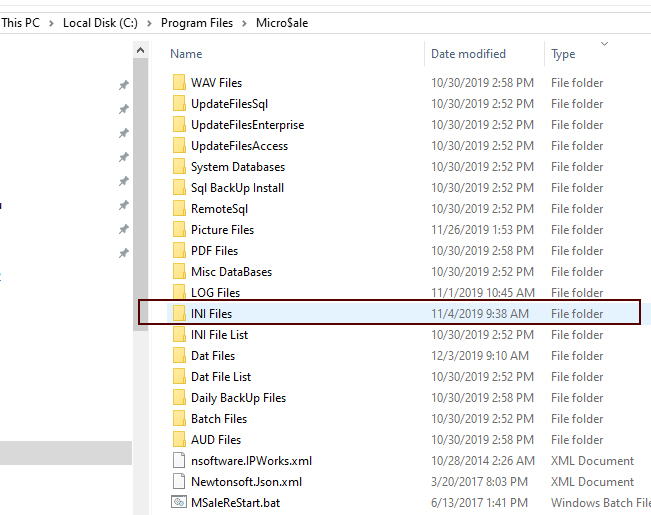
- IF you have a file called Functions.ini within this folder, skip the following steps and go to Part C.
- IF you do not have the filed called Functions.ini, go back to the MicroSale folder and select the INI File List folder (the files listed in this folder are archived, unused files)
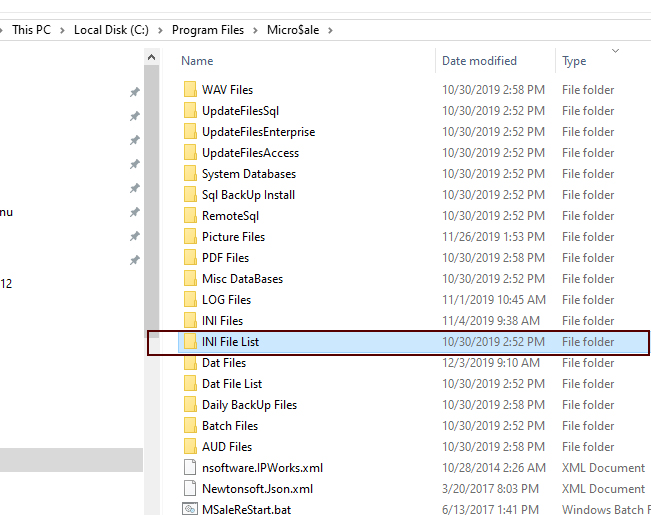
- In the INI File List folder, find Functions.ini and copy the file
- Go back to the MicroSale folder and then select INI Files (This is the active folder that the software uses). Paste the Function.ini file into the folder
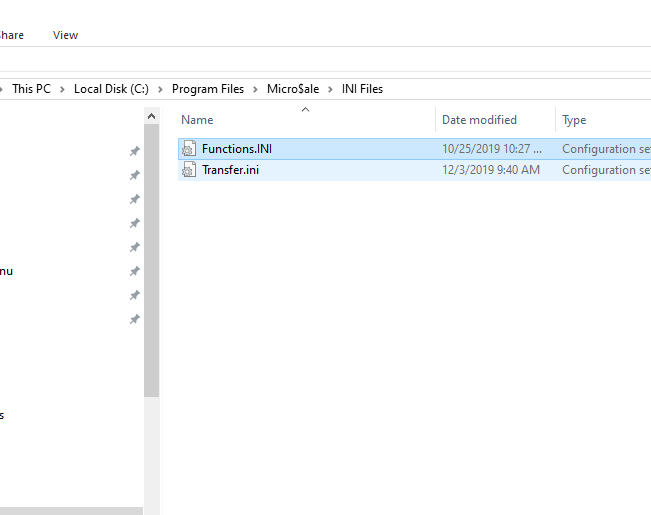
- Your folder should look similar to this. You may have more or less files in your folder. Do not remove any files.
- Open the Functions.INI file
- Scroll down until you find the header [Call In Orders]
- It should look similar to this:
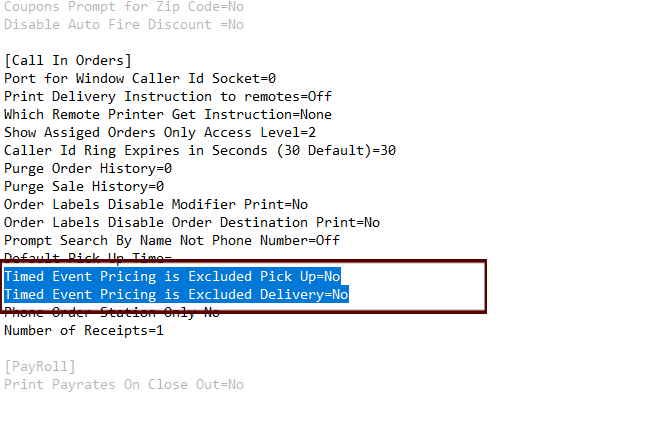
- Change the No to Yes. Do not put a space after the "=".
- After you have typed in Yes, to either or both lines, select Save.
- You are done.
- Exit out of all open folders and launch MicroSale.
Part C
Part C is for users who have an active Functions.ini file. Copy the text within the attachment of this article or copy the following text here:
[Call In Orders]
Timed Event Pricing is Excluded Pick Up=Yes
Timed Event Pricing is Excluded Delivery=Yes
- After the text is copied, paste it into your Functions.ini file.
- Save
- You are done.
- Exit out of all open folders and launch MicroSale.
ref: exclude timed events from phone orders
ref: disable timed events on call in orders, disable timed events on delivery, disable happy hour