
**EDIT** VERSION 10 SETS THE LAT/LONG AUTOMATICALLY. PLEASE FOLLOW THESE INSTRUCTIONS FOR VERSION 9 ONLY.
When using MicroSale's delivery with the integrated Google Maps, you must set the latitude and longitude of the restaurant's location in order to receive the most accurate directions and distances.
Setting the latitude/longitude in MicroSale:
Find the latitude and longitude.
-
- You can do this by clicking here: https://www.latlong.net/convert-address-to-lat-long.html
- Type in the restaurant's location and select Find. (example in #3)
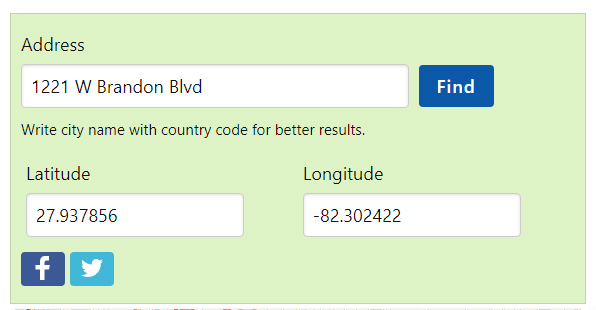
- Write down the lat and long or leave the browser open to go back to it later.
- Go to the MicroSale Directory (Local Disk (C:) > Program Files > Micro$ale.
- If you are already using the Functions.INI file, go to the folder labeled "INI Files". If you are not using the Functions.INI file, go to the folder labeled "INI Files List".
- If you are not using the Functions.INI file, copy the Functions.INI file (from the INI Files List and paste it into the INI Files folder. ((The INI Files List is an archived, unused folder)).
- Open up the Functions.INI file that is now located in the INI Files folder.
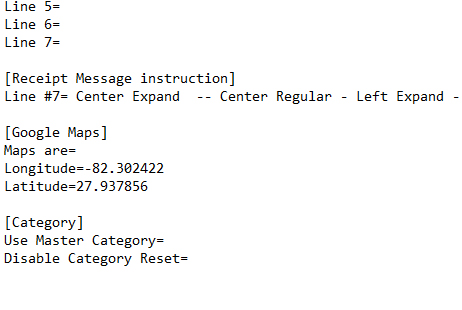
- Scroll down to the [Google Maps] section. This is located towards the bottom of the file. You can also select "CTRL F" to find it (you can search Longitude)
- Type in all of the digits that are listed under the Latitude and Longitude on the LatLong website.
- Your screen should look similar to this:
- Save the file.
- Exit.
- Launch MicroSale.
- Run a delivery test to ensure Google Maps is properly locating the restaurant.
- If you are already using the Functions.INI file, go to the folder labeled "INI Files". If you are not using the Functions.INI file, go to the folder labeled "INI Files List".