
Running a report to view all programmed menu items and prices
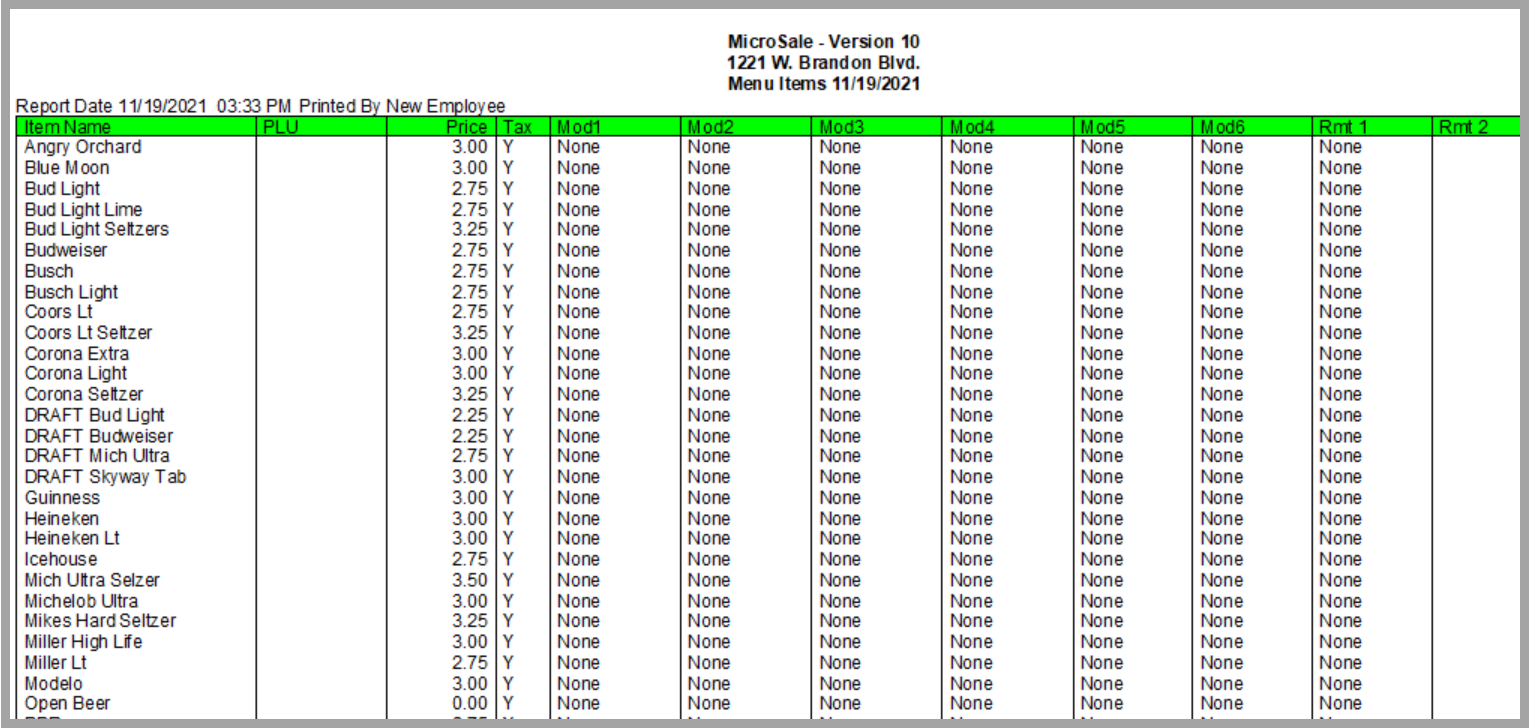
The "Print Store Menu" Report lists all programmed items including the price, assigned category, whether or not the item is taxed, modifier group names used, and remote (kitchen/bar) printer names assigned.
If you are running the report on a terminal with a receipt printer, as soon as you select "Print Store Menu", the report prints on the receipt printer. If you are running the report on a terminal with an office printer (80-column printer (physical or virtual)), the report is generated onscreen as a PDF that can be printed or emailed.
 Manager Menu > Report Menu > Print Utilities > Print Store Menu
Example:
How can I quickly change the prices?
You can change menu prices in two areas; you can go to the Menu Items and Pricing screen (where you create menu items), or to do quick price changes at one time, you can go to Price and Number Available.
Manager Menu > Menu Maintenance > Price and Number Available
Price and Number Available
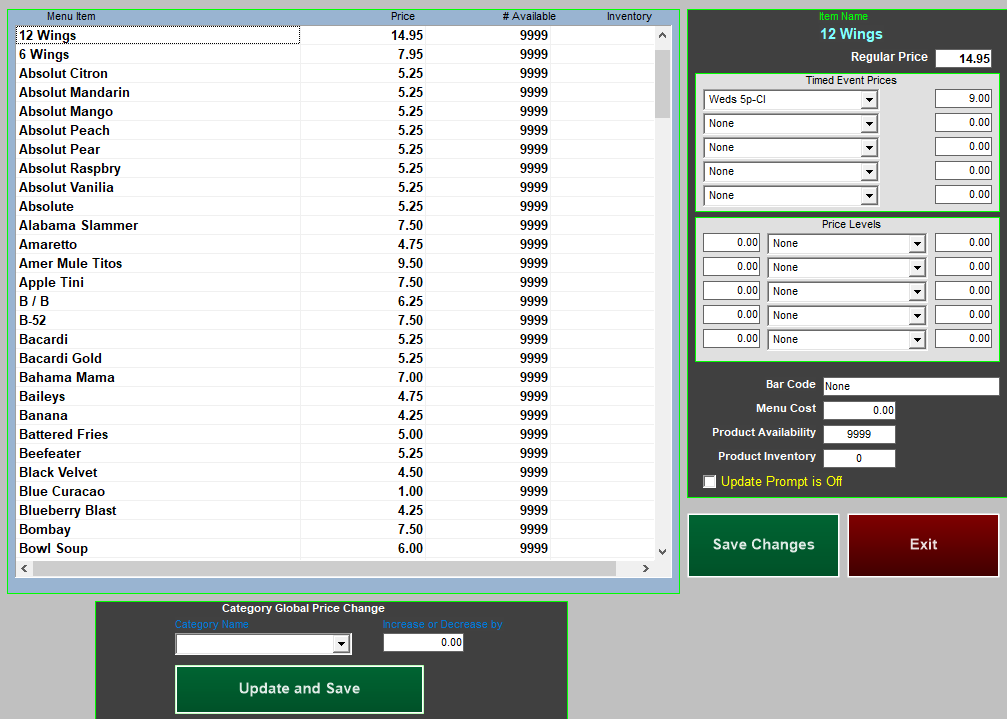
Prices can be changed individually or globally (using the Increase or Decrease by) field.
Product Availability is 9999 by default. When this number is set to 9999, it does not decrease. Any number lower than this will decrease as your staff sells the items. When the item drops to 0, it will ‘86’ and no longer allow the item to be rang in (use this screen to put items back in stock). This feature is useful for limited menu items such as lobster tails or specialty items.
Product Inventory is 0 by default. This number is a beginning count. Unlike the Product Availability, this number will not cause the menu item to ‘86’ and go out of stock. Both options will give you the same result, to see how many items you have sold versus what is actually counted at the end of the night.
Changing Prices
- Left click on a price that needs to be changed (a dotted box will appear)
- Type in the new price
- Continue to change prices until all desired items are changed.
- Press Update and Save
- Then select Save Changes before exiting