
The Meal Periods Report is located in the Managers Menu > Reports Menu > Meal Period Report
This report is generated from closed sales data (historical sales).
Meal periods group sales into time periods such as ‘breakfast’, ‘lunch’, ‘through time’, ‘dinner’. Comparing Meal Period Reports over a period of weeks or months can help you to analyze trends.
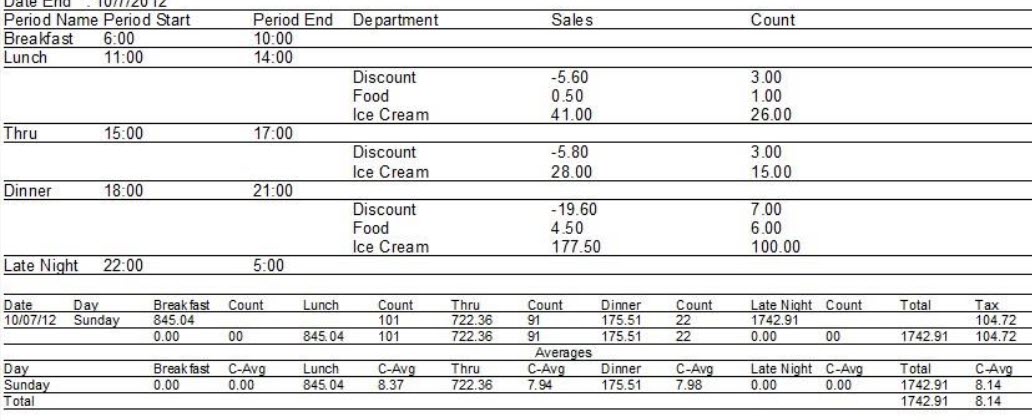
The example report above shows the set times by default. You may change the names of the meal periods and change the hours. In order to NOT overlap sales in the meal periods, make sure the same hour
is not listed twice. For example, Breakfast in the picture is set from 6:00-10:00 while Lunch starts at 11:00.
is not listed twice. For example, Breakfast in the picture is set from 6:00-10:00 while Lunch starts at 11:00.
The Meal Period Report is broken into two sections; the top, consolidates all days’ (or one day’s) sales
information into sales by the meal period names, start and end time, departments (of menu items sold), sales, and menu item count. The restaurant in the example is an ice cream shop with departments of Food, Ice Cream, and Discount.
The second section breaks down each day and provides a summary of each including menu item count per department, totals, customer average and tax.