
Place call-in orders in seconds
Using the integrated Caller ID box from Whozz Calling, inbound calls from previous customers automatically populate contact information, address and the previous order.
Caller ID MicroSale Integration (Supported Devices)
- CallerID.com WhozzCalling Basic POS Box 2,4, 8 Line connected through a local area network
- The WhozzCalling integration connects your POS system to your phone's caller ID
How to Order
To order WhozzCalling, please visit www.callerid.com or you can purchase the equipment through your MicroSale representative.
Setup
Required: TCI emulation (see dipswitch settings below): 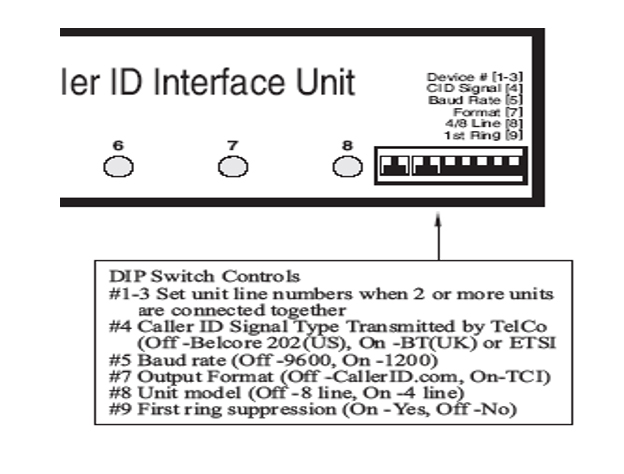
- Connect the designated phone lines to the rear of the unit into the appropriate jack(s). Make sure to also set the dipswitch for baud rate=9600.
- In MicroSale, go to Managers Menu > Register Setup > Terminal Configuration > Register Options > (on the General tab) check "Enable Call In Orders" and "User Caller ID".
- Then go to "Additional Options" and enable "Show Phone Order Button on Order Screen". Select Finished.
- Save. Exit.
- From the Terminal Configuration screen, select Printer Setup
- Select Attached Devices Setup
- Go to the Whozz Caller ID setup area of the screen
- Use the default setup onscreen (unless otherwise noted)
- Com Port 1, data rate 9600,n,8,1
- Save > Exit > Exit the MicroSale Program > Relaunch MicroSale
- Setup is now complete
How it works
Inbound calls flash an indicator, "Ringing", on the POS
- Tap on "Ringing" to populate the caller's information in the Customer Profile to begin a phone order
- Select delivery or pickup, if applicable, and then continue with the order
- After the order is completed, you can retrieve the order for review or payment by tapping on "Access Phone Orders"