In MicroSale you can configure the system to track hours worked by specific job codes. The “Driver” job code is only required for Quick Service environments in order for deliveries to be assigned to non-managers. In Full Service environments the only requirement is to have an Audit started (any server or bartender can be assigned a delivery order).
Before completing this article, make sure your system is set to accept delivery orders. Follow the section here
Please complete Part 1-2 in order.
How to create a Driver job title (Part 1)
First create a new job title of “Driver” which will be assigned to each employee that will be assigned to delivery orders:
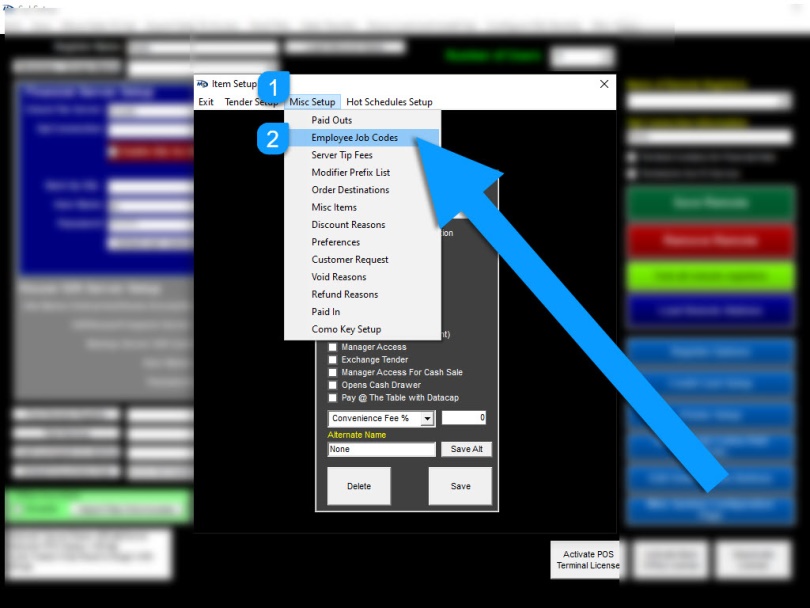
- Managers Menu > Register Setup > Terminal Configuration > Tenders-Job Codes-Paid Outs-etc.
- Select Misc Setup
- Select Employee Job Codes
-
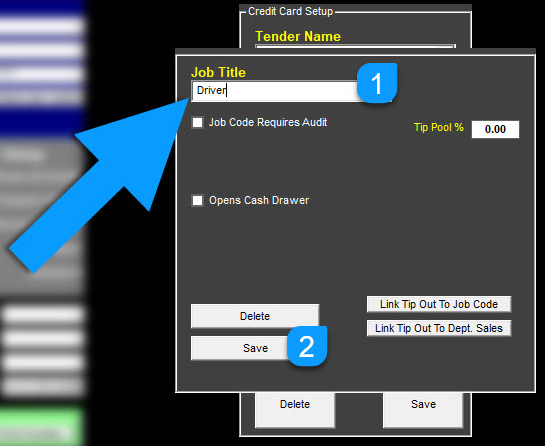
Type in Driver
OPTIONAL
Select the checkbox for “Job Code Requires Audit” only if your delivery driver will be placing orders into the system. Most drivers do not do order entry. - Select Save
-
Exit when finished
How to assign a Driver job title to an employee (Part 2)
- Managers Menu > Employee Maintenance > Employee Maintenance (on submenu)
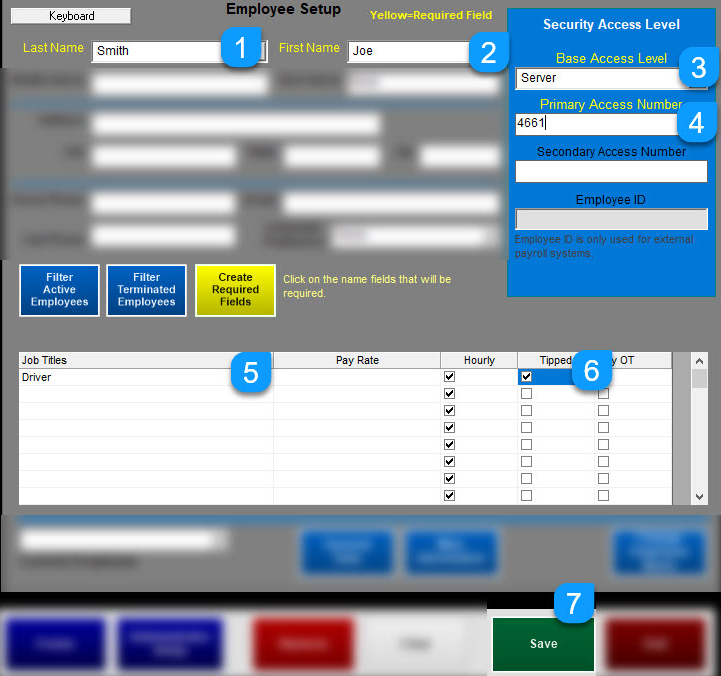
- Select the employee from the “Last Name” dropdown menu OR create a new employee
- Type in the employee’s first name (if creating a new employee)
- Select a Base Access Level. The Access Level is the security clearance in the system; it is not the job title! Choose Server, Bartender or Cook
- Type in the primary access number. This is how the employee logs in. Typically this is the last four digits of the employee’s social
- If you use swipe cards, place the curser in the Secondary Access Number field and swipe the card. This will allow the employee to login with either their number or the swipe card
- Select “Driver” from the list that display upon selecting the “Job Titles” field on the next available row
- If the employee is paid hourly, make sure Hourly is ticked
- If this employee can accept tips, tick the checkbox, “Tipped”
- Select Save
- Exit when finished (Repeat the steps above for each driver)
OPTIONAL
- Fill in a Pay Rate
- If the state you reside in uses daily overtime, select the checkbox for “Day OT”
- Fill in other contact information if desired
Example Setup: