Did you know you can put modifiers directly on the order screen without having to link them directly to menu items in the setup area?
This is beneficial when you want to add global modifiers to your POS system without linking it directly to every menu item in the setup screen.
Open Modifier
Links to a list of modifiers from the order screen that is not actually tied to an item – such as Sauces or Dips.
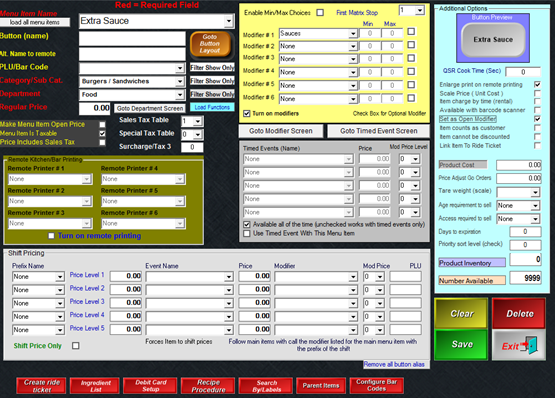
Create a modifier group (as you normally would with appropriate prices on each item)
- Go to Menu Items and Pricing
- Create a menu item name such as “Condiments”
- Link it to a category and department (department would be a regular department that you are already using in the menu such as “food”, “entrees”, etc.
- Checkmark the option for “Set as Open Modifier” (automatically checks “modifiers are enabled”)
- Attach your modifier group to it (displayed in the yellow box below)
- Do not put a checkmark beside the modifier group name – it must prompt to work correctly
- Put on a button.
NOTE: the menu button simply works as a link to get to the group of modifiers, because of this, the Regular Price field (shown under the department) is ignored. If you need to have upcharges, please put them with the modifier names.
Modifier on the Order Screen
Simplistic modifiers on the order screen that attach to a highlighted item on the virtual check – such as “No Ice”, “Drums Only $.50”, “AS APP”, etc.
- Go to Menu Items and Pricing
- Create a Menu name such as No Ice
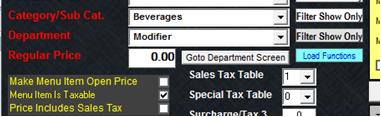
- Link it to the appropriate category
- Set the department to Modifier.
- Save
- Put on a button
Putting the Modifiers on Multiple Pages
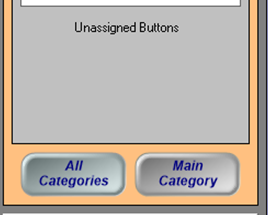
You can put the button on multiple screens by selecting “All Categories” on the Button Layout. If you do not see an unassigned button (as a gray button above All Categories, Main Category), double click the menu item text to populate a button.