
Go to Managers Menu > Register Setup > Printer / Devices Setup
Assigning Receipt Printers

- (top section)Click the drop-down arrow under “Available Printers” to display a list of printer ports installed on this PC.
- Select the port from the list that is to act as the receipt printer on this station.
- Once selected, the “Device Name” field will populate the windows name of the printer attached. If you would like to set a failover printer in case the assigned stops working it can be assigned using the “Failed Printer” drop-down field. In order to use the “Failed Printer” option, the vendor specific drivers for that printer must be used; “Generic/Text Only” will not work. Select “Save” to apply the settings.
FYI :The receipt can be routed to another device based on the order destination of the transaction.
- To set this, click on the “Route Receipt” button next to the receipt printer assignment to open the window (see below)
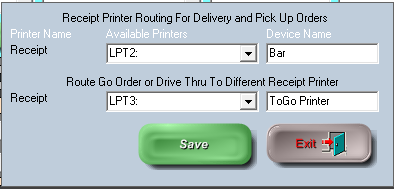
- By clicking the drop-down menu for “Available Printers” you can select alternate devices for receipt printing for Phone Orders as well as Go Orders and Drive Thru Orders.
EACH PRINTER USED IN MICROSALE REQUIRES THE PRINTER ESCAPE CODES! PLEASE FOLLOW THIS DOCUMENT.