
💲 Quickly Changing a Menu Price#36393e
You can update prices in two places:
- Menu Items and Pricing – for full item setup
- Price and Number Available – for fast price edits and bulk changes
📈 NEW: Bulk Price Changes by Percentage
Quickly increase or decrease prices for all items or by category using a percentage or dollar amount.
🚀 How to Access
Managers Menu → Menu Maintenance → Price and Number Available
✏️ Change a Price
- Click the price (a dotted box appears)
- Type the new amount
- Repeat for any other prices
- Click Update and Save
- Click Save Changes before closing
💡 Tip: Want to skip the "Update Item?" message every time?
Check the box for Update Prompt is Off before making changes.
📦 Availability vs. Inventory
| Feature | What it Does | Use Case |
|---|---|---|
| Product Availability | Controls if an item can be sold. If set below 9999, the count decreases with each sale. When it hits 0, the item is 86’d (removed from sale). | Use for limited items like lobster tails or specials. |
| Product Inventory | Tracks item count but does not prevent sales. Used for reporting only. | Use for end-of-day counts or reporting. |
🔄 “Update and Save” vs. “Save Changes”
- Update and Save: Confirms the changes you’ve just made.
- Save Changes: Commits everything and exits the screen.
📂 Filtering by Category
Use the Category Name dropdown at the bottom of the screen to filter the item list. This helps you narrow your edits when working with large menus.
🔁 Bulk Price Changes
- Use the Increase/Decrease By fields at the top.
- Choose a specific category or apply to All Items.
- Pick between a $ amount or a % percentage.
🛑 Why “9999”?
Setting availability to 9999 tells the system to never decrease that item’s stock. Ideal for always-available menu items like fountain drinks or condiments.
You can change menu prices in two areas; you can go to the Menu Items and Pricing screen (where you create menu items), or to do quick price changes at one time, you can go to Price and Number Available.
Added: Bulk price changes as a percentage (in addition to the existing $ amount functionality)
Through the Price and Number Available screen, you can change your menu prices in bulk by percentage; choose all items or change prices by category.
Price and Number Available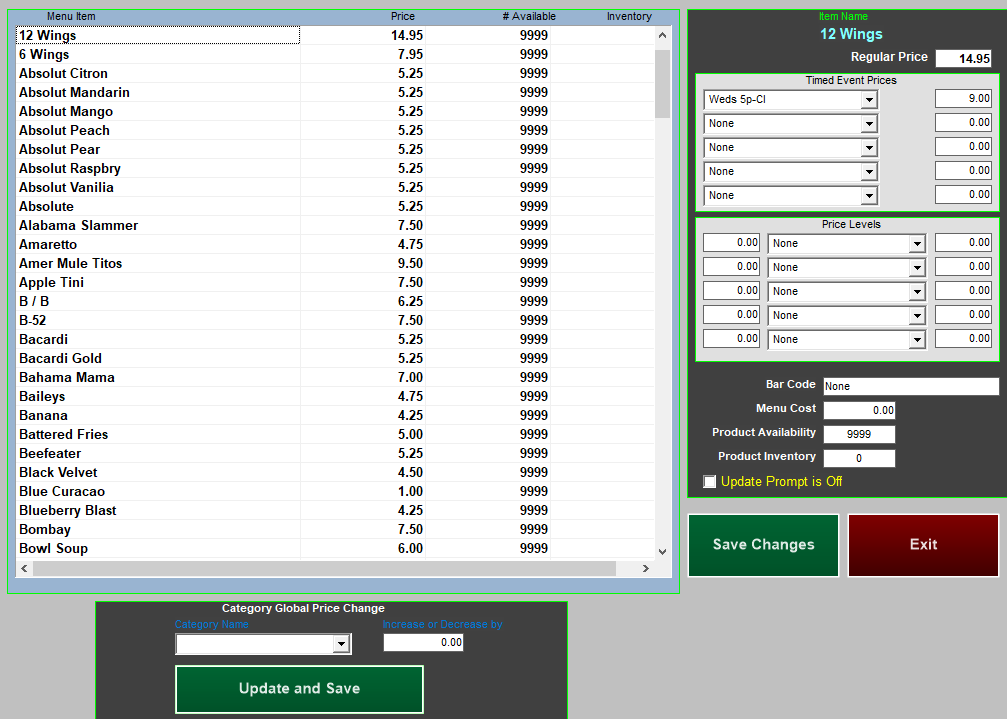
Prices can be changed individually or globally (using the Increase or Decrease by) field.
Product Availability is 9999 by default. When this number is set to 9999, it does not decrease. Any number lower than this will decrease as your staff sells the items. When the item drops to 0, it will ‘86’ and no longer allow the item to be rang in (use this screen to put items back in stock). This feature is useful for limited menu items such as lobster tails or specialty items.
Product Inventory is 0 by default. This number is a beginning count. Unlike the Product Availability, this number will not cause the menu item to ‘86’ and go out of stock. Both options will give you the same result, to see how many items you have sold versus what is actually counted at the end of the night.
Changing Prices
- Left click on a price that needs to be changed (a dotted box will appear)
- Type in the new price
- Continue to change prices until all desired items are changed.
- Press Update and Save
- Then select Save Changes before exiting