
Stop! PLEASE MAKE SURE YOU HAVE COMPLETED THE PC SETUP GUIDE AND WINDOWS 7 or 10 SETUP GUIDE BEFORE COMPLETING THIS STEP.
 Please Note! PLEASE MAKE SURE YOU ORDER THE SOFTWARE LICENSE BEFORE TRYING TO ACTIVATE SOFTWARE.
ALL SOFTWARE MUST HAVE A VALID LICENSE FILE. You will place your software order under “New Order” on the Dealer Portal. If you are a restaurant owner, please contact your dealer to order the software.
The purpose of this document is to walk through the process of installing Version 9 of MicroSale. Prior to this document you should have read and followed our PC Setup Guide and Windows 7 Setup Guide (if applicable).
If you have any questions or concerns while following through this document, please contact Technical Support at 813-681-1875 or support@microsale.net
Installing Version 9 and Upgrading
Each step below must be performed on ALL terminals and you must have an internet connection to each terminal.
- Copy the Version 9 Install/Upgrade file (uses same file) from the FTP site to each terminal.
- Run the Version 9 Install file.
- If applicable, run the SQL database upgrade utility in the Micro$ale folder.
- Copy in new Version 9 license file, and if applicable, update the M$CFG.ini.
- Launch MicroSale.
Notice that near the bottom right-side of the screen “Not Activated” will display.
Configuring a Register Number and Messages in MicroSale in Version 9
When you first run the upgrade you will receive the following messages:
License Not Activated…
Please Activate License
Please Save Register Options - This message flashes quickly and does not require an OK
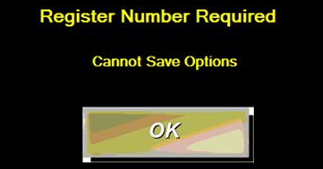
Register Number Required
Cannot Save Options
Activating MicroSale Version 9
The following instructions will walk you through activating Version 9 and explain the various messages you will receive during this process.
Go to Managers Menu > Register Setup > Activate License/Deactivate
- Select Activate POS Terminal License
- Select OK
- Restart MicroSale
- Note: You may receive a message stating “No IP” which means you have not put the V9 license file into the Micro$ale directory. Put this file into the folder and try again.
- A message will prompt stating: “No Backup Configuration Found. Please Create Backup Config Files”
- Select “Yes” to proceed with configuring the backup
- The “System Configuration” page will launch
- Select “Remember Terminal Configuration” button
- Select “OK” to the “Exporting the Registry Key Complete” message that appears.
- While within the System Configuration screen, select “Edit Order Screen Buttons” and then select “Restore Default”.
- Select Save
Confirming Correct Configuration in Version 9
- Verify / Correct: Local Pathing / Name / Remotes / File Transfer / System Paths / Credit Card Setup / Gift Card Setup.
- Go to Register Options and verify all options.
- We recommend starting with the “Default Selections” buttons, and then tweaking the options for the desired functionality. Verify that every custom Register Option is selected from its appropriate range.
- Verify all Printer Settings and ESC Codes.
- In Register Setup> Misc Setup-Terminal Groups, Etc. > Select “Edit Order Screen Buttons”
- Configure the function buttons as desired and then select Save.
- Compact the databases on each terminal.
Managers Menu > Register Setup > Misc Setup-Terminal Groups Etc. > Select “Select Main Data Sets” > Select “Compact All Selected”
- Fully Test System: Audits / Sales / Voids / Receipt and Remote printer(s) from each terminal / Credit Card Charge / Tip / Return / Close Audits / Daily Closeout / Settle Batch / Weekly Closeout / Time Clock functions / Time Clock reports / Emailing Reports/ etc.
- Make a new backup of each Micro$ale directory after testing is complete.
----------------------------
Additional Notes:
While optional, it is also a good idea to perform the following:
- Re-register the “FoodCostSync.dll” and “GeneralLib.dll” using RegAsm.exe within Windows
How to do register FoodCostSync.dll and GeneralLib.dll files:
- Go to Start
- Run
- Select “Browse”
- Go to C > Windows > Microsoft .NET> Framework > v2.0.50727 > Select “RegAsm.exe” > Select “Open”
- The pathing for this file is now inserted into the Run window
- Browse to your MicroSale folder and locate the file you need to re-register and drag it into the same field right after the “RegAsm.exe” pathing.
- Select OK
- A black-colored window will appear and disappear quickly (There is no “Successful” message)
- Repeat step 5-6 for each file you need to register