
Course lines are typically used within Fine Dining establishments. When configured correctly, course lines will allow for servers to select menu items to label by course. As well as, the kitchen can be notified when to prepare each course.
Adding Course Line & Fire Order buttons
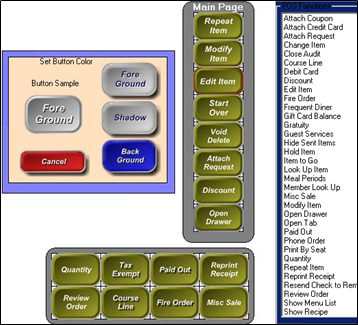
In order to use course lines you must add two new function buttons to the ordering screen: Course Line and Fire Order. The “Fire Order” function button will send a “Fire Chit” to predetermined remote printers when they are ready for the next course.
- Go to the Managers Menu > Register Setup > System/Configuration
- Select the “Edit Order Screen Buttons” button from the second toolbar located at the top of the screen
- Locate the “Course Line” and “Fire Order” buttons from within the “POS Functions” section
- Select an empty button from either the vertical or two horizontal function button layouts
Or double-click an occupied button to replace it with a new function button
- Select “Save”, when finished
Adding a Fire Order message
The system can be configured to allow servers the ability to type a short message to print on the fire chit that is sent to the kitchen staff.
- Go to the Managers Menu > Register Setup > Register Options by Terminal
- Select the Printing/Cash Drawer tab
- Enable the option for “Enable Fire Order Instruction”
Setting up a Fire Printer
- Go to the Managers Menu > Register Setup > Printers / Devices Setup
- Select each remote printer you need a “Fire” chit to print to and then select the “Fire Printer” checkbox
- Select Save between each remote printer change
Using Course Lines
- From the Ordering Screen, select the Course Line button
- Select a Course Name from the list
- Select your item(s) for that specific course
- Repeat for each course, starting with selecting the Course Line button
Using Fire Order
The “Fire Order” function button is meant to be paired with the “Course Line” function button but is not mandatory to use. The reason this function is optional, is that it puts all of the responsibility on remembering to send the next course to the kitchen, on the server who may get busy and forget to send the second course to the kitchen. For this reason, Fire Order is optional to configure within the system.
After the menu items are entered and “Done” is selected to send those items to their respective printer(s), the server needs to decide when to “Fire” the next course line for the kitchen to start preparing (Example: 10 minutes after the Appetizer) .
It is important that the kitchen staff understands that the first ticket to print will be entire list of items, separated by course line. When the server is ready for the next course to be made, they will use the “Fire Order” button to send a fire chit to the kitchen. When the server selects this button it will send a slip to the kitchen saying “Fire Order Now For Table #” then it will list the table #, ticket #, time, date, and server’s name. It DOES NOT reprint the actual items!
If you have also configured the system to print a “fire order message”, then when the server selects the Fire Order button it will prompt them to enter a message using an on-screen keyboard. At this point, they could enter something like “Cook Entrée” or “Wait 10 extra minutes for dessert”.
Example:
Table 101 would like to order Calamari for an Appetizer, two orders of Chicken Linguini for an Entrée, and Key Lime Pie for Dessert.
Course Line:
- We will start by selecting the “Course Line” button from within the Ordering screen
- Then, select the course name “Appetizer” from the list that appears
- Now, select the menu item “Calamari” from the menu to add to the Virtual Check
- Next, we will select the “Course Line” button again and this time choose “Entrée”
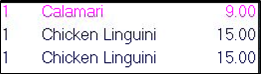
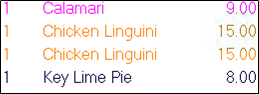
Notice: Our “Calamari” turns to a different color. The system will turn each course a different color to make it easier to differentiate between courses while ordering them
 |
 |
- We will select two orders of “Chicken Linguini” from our menu
- Lastly, we would select the “Course Line” button again and select “Dessert”
- Then select “Key Lime Pie” from our menu
- We will then select “Done” and have the order sent to the kitchen. It will print the entire ticket separated by what course each item falls under.
Fire Order:
- Recall Table 101 and select the “Fire Order” button to send a chit to the kitchen to let them know the next course is ready to be prepared.
- We also have “Fire Order Message” enabled so we are going to type the message “Prepare Entrée”