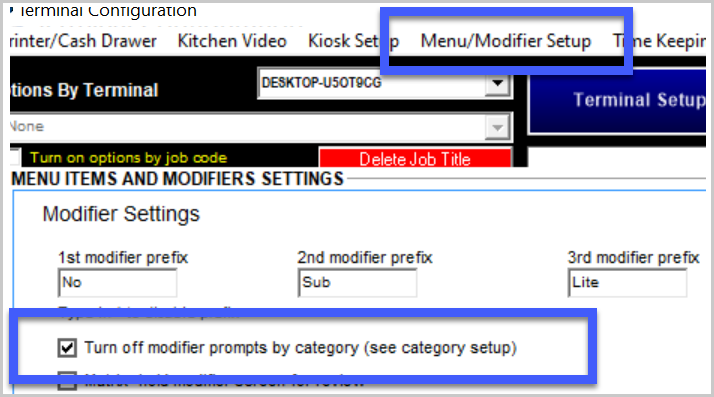
You can control which registers and/or which menu categories prompt modifiers. This is helpful when bartenders make their own drinks and want to skip the mixers prompt, while servers on the floor must use the mixers prompt so that the bartender knows how to prepare the server's drink.
By default, this option is off. To disable modifier prompts, it requires two parts; the category must be set to disable modifier prompts (disables modifier prompts on all menu items assigned to a specific category) and then you need to assign this option to the specific registers that need it disabled. The two part process is what allows you to control which categories and registers do not have the prompts (example: Mixers should be disabled on the bar stations but regardless of the register, Entrees' must always prompt for a side choice).
Part 1: Set which categories need to disable modifier prompts
 Manager Menu > Menu Maintenance > Menu Category
By default, categories are set to No.
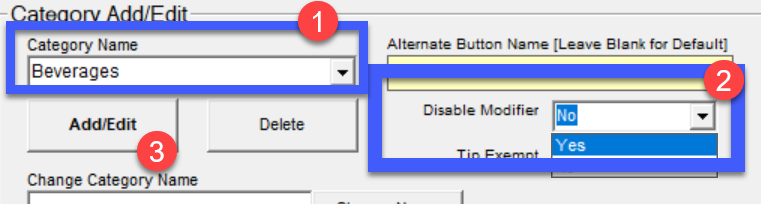
- Choose the category name from the dropdown
- Next to Disable Modifier, select the dropdown and change the No to Yes
- Select Add/Update to save your changes
Part 2: Set which registers need to disable modifier prompts
Manager Menu > Register Setup > Terminal Configuration > Register Options > Menu/Modifier Setup
The option is register specific and must be set on each register that needs to have the prompts disabled (based on the category's setup, in Part 1).
- Tick the option, "Turn off modifier prompts by category (see category setup), and Save when completed