
This article will walk you through setting up different payment types and includes several examples.
Custom payment types (or tenders) allow customers to pay orders with customized options while properly accounting for the sale in the POS and breaking down sales by payment type. For example, if you use house accounts to allow customers to pay on account (to pay their bill later), you would create a custom House Account tender.
Customizing new Payment Options
- Go to the Managers Menu > Register Setup > Setup/Configuration
- Select the “Tenders–Paid Outs–Customer Request–More” button (bottom, left side of the screen)
- The “Tender Setup” screen is the default selection that will load in the “Item Setup” window
- Within the “Tender Name” dropdown list you can view which payment types have already been configured as well as type in a new payment type.
Credit Card Setup (for standard processing)
- Type Credit Card within the Tender Name field
- Select the checkbox for “Authorization Required”
- Save
Credit Card Setup (EMV processing)
- On an Existing Credit Card Tender:
a. Click on the drop-down under "Tender Name" and select Credit Card
b. Remove "Authorization Required" and tick the option next to EMV Pad.
c. Save - To create a New Credit Card Tender:
a. Type in Credit Card
b. Tick the option next to EMV Pad
c. Save
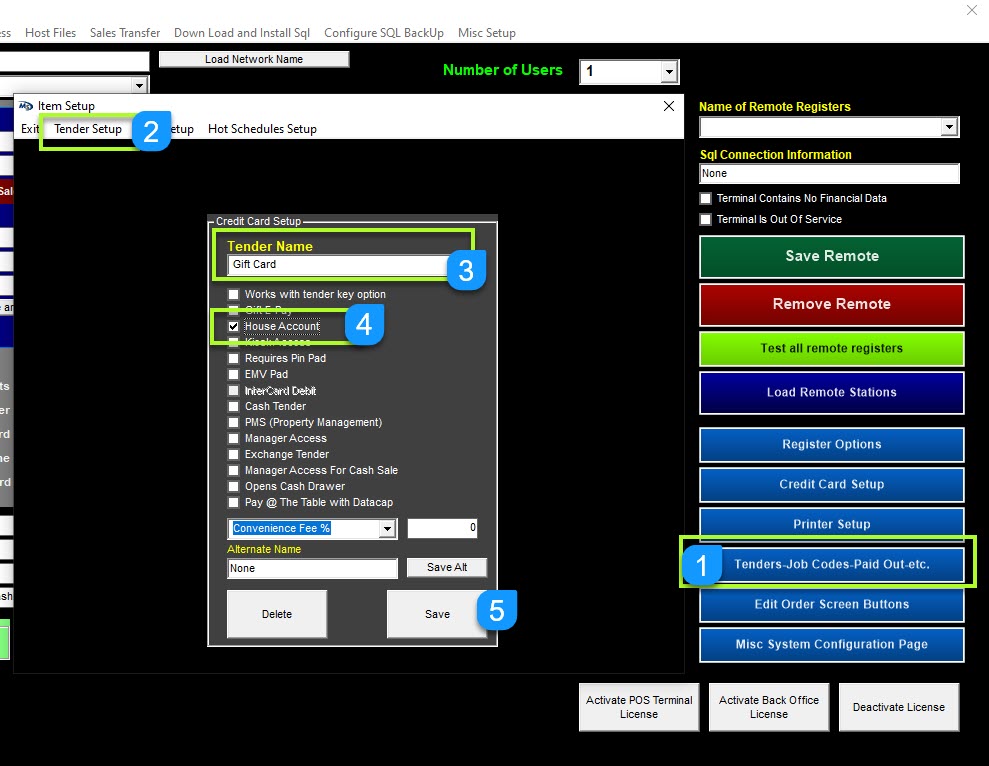
In-house Gift Card Setup
A gift card tender must be created in order to redeem a gift card that was purchased.
- Managers Menu > Register Setup > Terminal Configuration > Tenders-Job Codes-Paid Out-etc
- Go to Tender Setup
- Type in Gift Card
- tick the option, House Account
- Save
External Gift Card(GiftEPay) Setup
- Type Gift Card within the Tender Name field
- Select the checkbox for Gift E-Pay
- Save
House Account Setup
- Type House Account within the Tender Name field
- Select the checkbox for House Account
- Save
Payment Options
- Authorization Required – Select this checkbox for integrated credit card tenders. It will enable the credit card swipe screen as well
- Gift E-Pay – Select this checkbox when using GIFTePay or Mercury for gift card processing. It will enable the gift card swipe screen
- House Account – Select this checkbox for local, integrated house accounts and gift cards. Enables a lookup/swipe screen for both types of accounts
- Kiosk Access – Select this box to allow the use of this tender type while MicroSale is in Kiosk mode. (Can be used with multiple tender types)
- Requires Pin Pad – Allows the user to enter information using a pin pad (works in conjunction with the Ingenico i6550 pin pad/credit card processing unit only)
- EMV Pad – Works in conjunction with EMV external devices. Allows for payment processing through the external device
- Cash Tender – Enables other tender types to act as cash, such as Monopoly Money, in that the system will allow this to tender to close the order as well as prompt how much change the customer has coming back but it will not count towards the Cash total in the system. (Note: The “Cash” tender type is built into the MicroSale system automatically and does not require any set up)
- Manager Access – Restricts the tender type to Manager Access only and will require approval for lower access levels
- Exchange Tender – Works in conjunction with the currency exchange rate; select this box to create a foreign currency
- Manager Access for Cash Sale – Restricts the “Cash” tender type to Manager Access only
- Opens Cash Drawer – enables the drawer to open for a specific tender type
Customizing the "Speed Tenders" on the payment screen
Manager Menu -> Register Setup -> Setup/Configuration -> Speed Tenders -> Set the wording and amount to the dollar amounts you desire.