
By using the Export Wizard in Access, you can export an Access database object, such as a table, query, or form, or selected records in a view into an Excel worksheet. When you perform an export operation, you can save the details for future use, and even schedule the export operation to run automatically at specified intervals.
The following are scenarios when you would like to export data from MicroSale (Access) to Excel:
- MicroSale data is in Access databases (or SQL), but you would like to only view certain numbers per report. You would like to create a pivot chart to only view information useful to your business.
- You are a long-time user of MicroSale’s Reports, but your manager prefers to view reports in Excel. At regular intervals, you do the work of copying the data into Excel, but you would like to automate this process to save yourself time.
Connect to MicroSale’s Access Data from Excel
To bring Access data that can be refreshed into Excel, you can create a connection, often stored in an Office Data Connection file (.odc), to the Access database and retrieve all of the data from a table or query. The main benefit of connecting to Access data instead of importing it is that you can periodically analyze this data in Excel without repeatedly copying or exporting the data from Access. After you connect to the data, you can also automatically refresh (or update) your Excel workbooks from the original Access database whenever the database is updated with new information.
- Click the cell where you want to put the data from the Access database.
- On the Data tab, in the Get External Data group, click From Access.
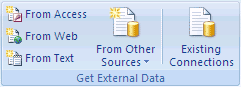
- In the Look in list, locate and double-click the Access database that you want to import.
- In the Select Table dialog box, click the table or query that you want to import, and then click OK.
- In the Import Data dialog box, do the following:
- Under Select how you want to view this data, do one of the following:
- To view the data as a table, select Table.
- To view the data as a PivotTable report , select PivotTable report. (Allows you to Alter Reports)
- To view the data as a PivotChart and PivotTable report, select PivotChart and PivotTable report.
- Optionally, click Properties to set refresh, formatting, and layout options for the imported data, and then click OK. Choose a Refresh Option. It is recommended to check “Refresh Data when Opening the File”
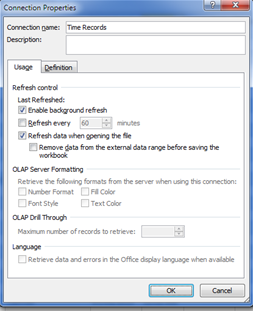
- Click OK when finished.
- Click OK again out of the window.
- When you are satisfied with your report, click SAVE AS and name the report. It is suggested to save the spreadsheet directly on the Desktop, allowing the end user to simply double click the report at any point throughout the day. If your customer would like multiple reports in this format, you can make a folder on the Desktop for “Reports” with the various saved Excel files inside.
Example of Time Records in Excel, Real-Time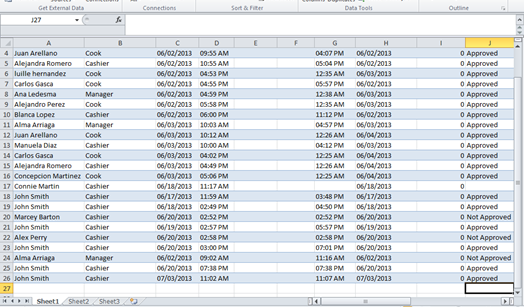
Please Note:
Full Service operations uses one database. Quick Service typically stores databases per terminal, unless using SQL.