
The Daily ReClose is a helpful tool when a restaurant forgets to close out the previous day, if a terminal errors or if the network is down during the close out process. MicroSale Version 90977 or Higher is required to utilize this function.
Locating the Daily ReClose Tool
- Go to Managers Menu > Reports Menu >Daily Sales Summary.
- On the menu bar at the top select Edit > Reclose Day
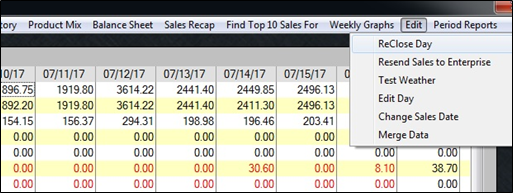
Running the Daily ReClose for a Previous Week
The Daily ReClose is used in the event that the close out closed to the wrong date, didn’t close out fully from a day, or two or more days are combined in one day.
- Once you select ReClose Day the window below will appear.
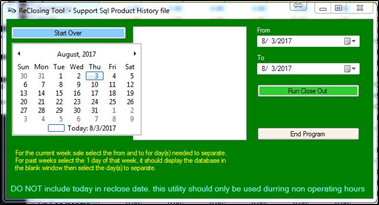
- First, on the calendar on the left, select the first day of the sales week to display a list of the weekly sales backups for that period. They will be displayed in the open white section to select.
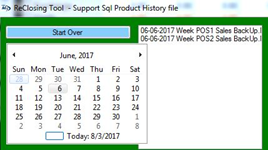
- The sales backup file from the previous week will load (1 for each terminal if in Quick Service / 1 overall if using Full Service)
- Format: MM-DD-YYY Week PosName Sales BackUp.MDB
- In the fields on the right side of the window above the “Run Closeout” button select the date(s) within the week you selected that need to be closed out (You may select a single day for “From” and “To” or a series of consecutive dates if needed)
- Select “Run Close Out”
- Several messages will display as the ReClose tool goes through the process.
- The close out is now complete. You may now repost the sales for that day(s) and enter the daily deposit or reprint/re-email reports.
Running the Daily ReClose for the Current Week
The Daily ReClose is used in the event that the close out closed to the wrong date, didn’t close out fully from a day, or two or more days are combined in one day.
.
- First, on the calendar on the left, select the date that needs to be reclosed in the current week.
- In the fields on the right side of the window above the “Run Closeout” button select the date(s) within the current week that need to be closed out (You may select a single day for “From” and “To” or a series of consecutive dates if needed)
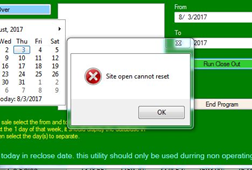
- Do Not select the current day until after the restaurant has ran their end of day for today. The utility will not allow you to execute the reclose and will display the following message.
- Select “Run Close Out”
- Several messages will display as the ReClose tool goes through the process.
- The close out is now complete. You may now repost the sales for that day(s) and enter the daily deposit or reprint/re-email reports.