|
1. Select Menu Items and Pricing
|
|
|
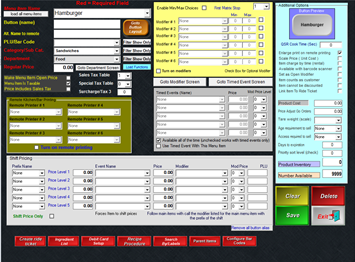
The Menu Items and Pricing Screen
This screen is where all of your items will be created – think about the following questions as you look at the screen.
· What kind of item will I be adding? · What category does this item fall into? · What is this item: food, a beverage, or alcohol? · How much are you selling this item for? · Does this item need to print anywhere to be prepared (kitchen or bar ticket printer)? · Can the customer modify this item? (such as meat temp, add toppings, etc) o Does this item come with a side item that should prompt on the screen? · Is this item available for a happy hour price?
|

|
|
Creating a Hamburger or Similar Style Items 1. Type in your item. In this example, type in Hamburger.
|
|
|
2. Use the drop-downs to select the appropriate category and department name. |
|
|
3. Type in a Regular Price
|
|
|
4. If this item needs to print in the kitchen, select Turn on Remote Printing and select Kitchen in the Remote Printer #1 box.
|
|
|
If this item does not get modified and does not have a happy hour, go ahead and select Save. You can also save it and make changes at a later time.
|
|
How to create menu items