|
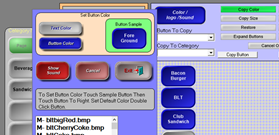
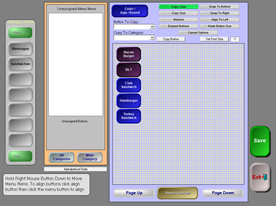
1. Select Copy Color
|
|
|
2. Select Color / logo /Sound
|
|
|
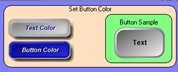
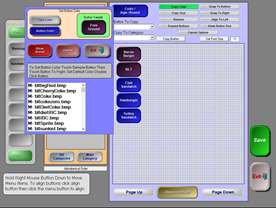
3. Select the Button Color
|
|
|
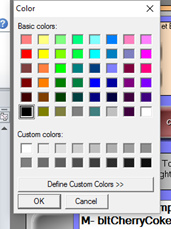
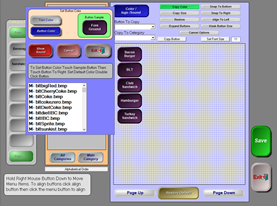
4. Choose a desired color, or select Define Custom Colors >> for more options
|
|
|
5. Select Text Color (if you do not change the text color, it will stay the default color of Navy Blue). |
|
|
6. When you are satisfied with the button in the sample, (left click) select each of the buttons on the grid that should use the same attributes as the button sample.
|
|
|
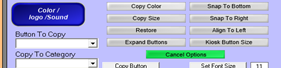
7. When you are done, select Cancel Options |
|
|
Copying Colors of Existing Buttons |
|
|
Other than creating new colors, you can also copy existing buttons’ colors onto new buttons. This is useful when you are adding new buttons to an existing screen.
|
|
|
1. Select Copy Color
|
|
|
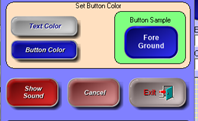
2. Select the button that you want to copy. The Set Button Color window will appear.
|
|
|
Ignore the window that appears. 3. Select (left click) the other buttons that you want to use the same color scheme as displayed on the Button Sample.
|
|
|
4. Once you are happy with your changes, select Save before Exiting. |
|
How to change button colors