
(Using the Recipe/Procedure Button)
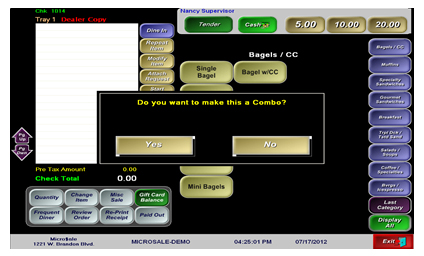
This feature allows the cashier to upsell a single item into a combo. When pressing the menu item, it will prompt a message asking if you would like to make the item into a combo. When pressing “yes”, the menu item then references the combo version of the item.
ID Screen > Managers Menu > Menu Maintenance > Menu Items and Pricing
Step-by-Step Instructions
- Go to the Manager’s Menu and then Menu Maintenance
- Go to Menu Items and Pricing; set up a menu item regularly.
- Press the Recipe/Procedure button at the bottom of the screen
- Type in the word Prompt with a colon, followed by a yes or no type of question. After your question, put a dash and a reference word. MicroSale will automatically look for the reference word as a prefix. For MicroSale to look for that word as a suffix, put an exclamation point on the end.
- Press Done
- Then Save the menu item
Examples:

The reference word can be anything as long as it matches to a menu item
- Create a Combo menu item using identical spelling with the added word of Combo (or the word you used in the Recipe/ Procedure). Add in all necessary pricing, modifiers, etc.
- Save your new combo menu item
- Put both menu items on to buttons
By default, when the user touches “No”, the prompt will not appear again on the current check. This is to prevent repetition. The Yes or No prompt is essentially designed to simply remind a cashier that another version of the menu item is available. To make the menu item ALWAYS prompt the question regardless of touching no, create a data file in the MicroSale directory. Create a new text file and name it promptison.dat. Nothing needs to be inside the .dat file