While you may simply want to create a modifier with an upcharge or ring in the item twice, below are several alternatives for ringing in liquor doubles, rocks and upcharges.
Shift Level Doubles
The benefits of the shift DBL:
- The user can ring in the menu item first and then change it to a double after it is on the virtual check (by highlighting the item on the check and selecting “DBL”) or by selecting DBL and then the menu item.
- The reports will clearly show DBLs vs. Single liquor items so the inventory and product costs will be more accurate.
- The system automatically doubles the price, you do not have to manually type in the price in the Menu Items and Pricing
Step-by-Step Instructions
- Go to Shift Levels in the Menu Maintenance Screen
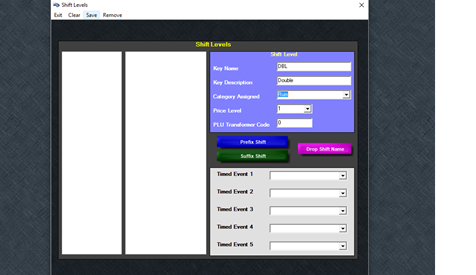
- Type in DBL for the Key Name. The letters “DBL” triggers the function of doubling the price of the menu item. If you do not want the system to automatically double the price, use a slight variation of this abbreviation such as “DBL.” or “Dble”.
- Type in Double for the Key Description (a key description is only shown on the button for the software user)
- Select the category that will allow doubles (such as Rum)
- Set the Price Level to 1
- Save
- You will need to repeat steps 2-5 for all categories that will accept doubles
- Your screen should look identical to this
- Go to a liquor item that will accept a double in the Menu Items and Pricing Screen
- If you do not already have the liquor item programmed, program it now.
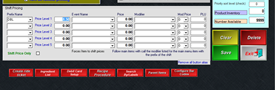
- In the Shift Pricing area, press the dropdown and select DBL. If you do not see anything in the dropdown list, the screen has not refreshed. Save the menu item and go back to the item you just created.
- Next to Price Level 1, put in the price for the item with the price. This is not a price difference. **If you are using “DBL” which will double the price, leave the field blank as the system will automatically double the price of the value used in the regular price field.
- For example, if a Captain Morgan is regularly $5 and a DBL. Captain Morgan is $8.50, put $8.50 in the DBL Price Level 1.
- Do not check “Shift Price Only” – this option forces the user to shift the item. This option is necessary for items that must have a shift attached such as a Small Coke, Medium Coke, and Large Coke. Since you can ring in this item without the Shift, Do Not checkmark the Shift Price Only option.
- When you are done, select save
- Since this item is not going to automatically shift the price, you must put the DBL shift on a button.
- Go to Menu Item Button Layout
- Select the appropriate category
- Find DBL in the unassigned Menu Items list and add it on a button. Shift level buttons will always appear red on the order screen. You cannot change this color.