About
A drink chip (or drink voucher), is designed to enable a guest to pay for a drink now and redeem the drink later on. Creating drink chips through the POS system instead of using coins or tokens, all drink sales are properly tracked and sold.
Selling Drink Chips
- To sell a Drink Chip (Voucher, Coupon, etc.), ring in the appropriate voucher. In this example, the customer has purchased a $4.50 voucher for a friend.
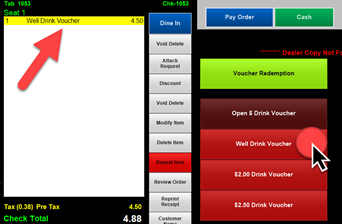
- Select Pay Order and complete payment
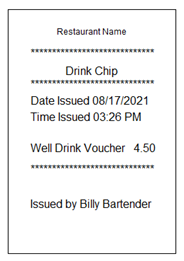
- After the check is paid, a coupon prints for each drink chip purchased (prints on an attached receipt printer) – the chits can be given out to fellow customers or to the bartender to hand out – example drink chip (or voucher)
Redeeming a Drink Chip
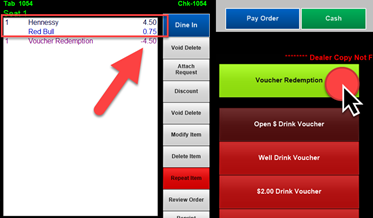
- Ring in the poured drink
- After the item is entered on the check, you can either select “Discount”, and select the appropriate discount name, or, you can select Voucher Redemption (the Voucher Redemption button is a discount shortcut).
In the example below, the voucher was for $4.50 (The customer owing the difference)
How to Create Drink Chips:
- Create a department name called Drink Chip, Save

- Create a menu item called Well Drink Voucher, $3.00 Drink Coupon, etc.,, or whatever you want it to be called. You can also do an open priced item.
- Assign the menu item to the appropriate category
- Assign the menu item to the department of Drink Chip
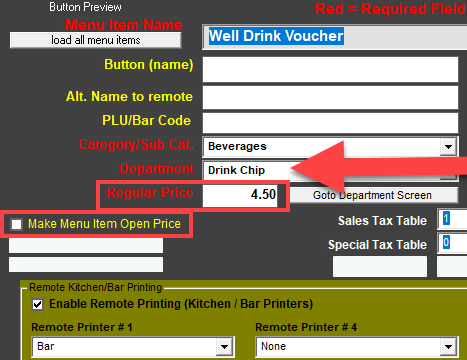
- Place on a button
- Save
- Create a discount – you can name it anything you’d like such as “Drink Chip Redeem” with an open $, or set amounts
- Save
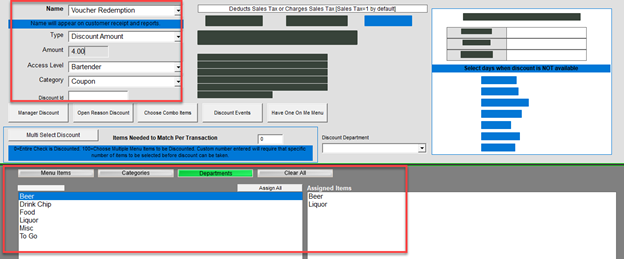
- While you can redeem the amount through the “Discounts” button, alternatively, you can put a discount on a button for quicker use.
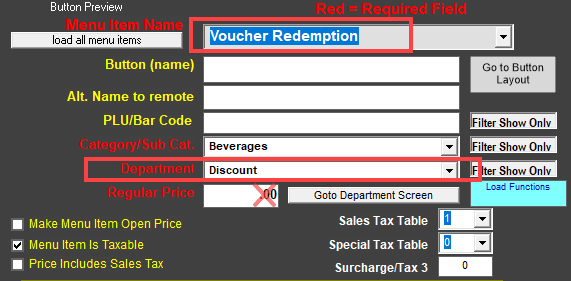
- To do this, create a menu item name with the identical discount name.
- The identical discount name must be assigned to the department of Discount
- Because this menu item is a shortcut to use the discount name, the “Regular Price”, printing, etc., is not used.
- After the discount name is created and assigned to the department of Discount, Save.
- Add the discount name to a button.
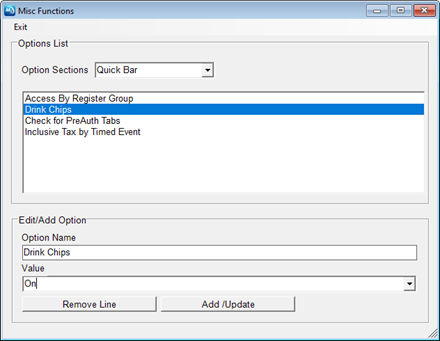
- For Version 9, place the attached INI file into the INI folder within Micro$ale – OR, if you already have a Functions INI file, you can simply open the INI file and find Drink Chip under “Quick Bar” and type in Drink Chip=On (no spaces)
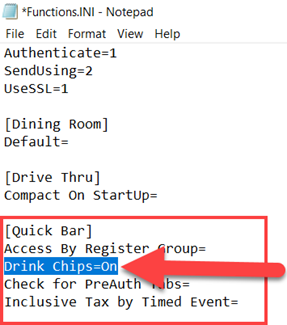
- For Version 10, go to Register Setup > Terminal Configuration > Register Options > Email-Export-INI > Misc Functions > Quick Bar
- Double click on Drink Chips and type in the Value of On
- Select Add/Update and Exit