- ID Screen > Managers Menu > Menu Maintenance > Menu Items and Pricing
Ingredient List – designed for Hibachi Style Cooking. MicroSale will print the ingredients that are required to prepare each entrée. This ensures that the proper food is taken out to the Hibachi Grill to prepare at the table in front of the guests.
Setting up ingredient list
- Create a new menu item or pull up an existing menu item that needs an ingredient list attached
- Select Ingredient List
- Under Create Ingredients, type in the first ingredient (as whole items, such as “Chicken”)
- Select Save Item (gray button under the Create Ingredients field
- Under the Menu Item Ingredient List, select the first field and select your ingredient
- Next to Quantity, type in the amount needed for this item. Such as 4oz, 2, etc., an integer that will be understood for this menu item.
- Continue creating your ingredients for this menu item.
- In the Ingredient Printer field select the appropriate printer. When finished, touch the Done button.
- To allow the ingredients to print at the printer you selected, the following steps must also be done:
- Go to Managers Menu > Register Setup > Terminal Configuration > Register Options > Printing/Cash Drawer. On the Receipt Printer Options tab, put a check mark in the box beside Print Ingredient List to Remote. Save when completed.
Example of ingredient list feature:
|
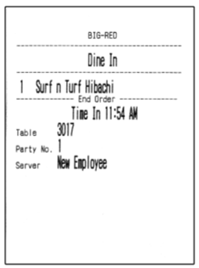
Menu Item Printed:
Surf n Turf Hibachi
|
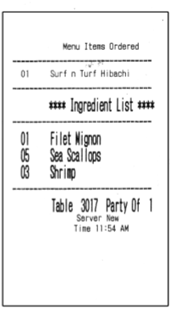
Menu Item Printed to “Ingredient Printer”:
Lists menu item name on top of the check, lists ingredients in bold.
In the ingredient list for this item, the quantity displays on the left (example, 1 filet, 5 scallops, and 3 shrimp)
|