Optimize promotions with BOGOs or discounts based on bundled items with Automatic Combo Discounts, streamlining BOGO (Buy One, Get One) offers.
Key Benefits
Requirements
- Must ring in all items simultaneously for the automated discount to activate
- The discount must be assigned to a “Combo” type
- Always takes discount % off the least expensive item
- Must assign qualifying items in the Combo Match area
How to create Automatic BOGO/Combo Discounts
- Go to Managers Menu ->Discounts, Gratuity, and Maintenance
- Type in a descriptive name (e.g., "BOGO 100% OFF" or "BOGO 50% OFF Drink")
- Choose a Combo Type
- Combo Percentage
- Combo Amount
- Combo Set Amount
- Set the Access Level
Choose a low access level (e.g., Cook) for security preferences. - Select the Combo Category
- Click on the Choose Combo Items button to assign the items that are available for this automated discount
- Add the qualifying items in the Combo Match area:
Assign items to boxes based on the desired trigger quantity. - For standard BOGO, use Box 1 and Box 2 only.
Exact Matches with Shift Levels
The automated combo discount must have exact matches to entered menu items, meaning if you use shift pricing or prefixes, where you ring in a “Large” > “Pizza”, you will assign the “Pizza Item” to all appropriate level names in this combo area. Include all shift prefixes if your items use shift pricing.
- When finished, select Save and then Done to exit the Combo Items Window
- Select Save in the top left corner and Exit the Discounts setup screen.
- Login and test your combo!
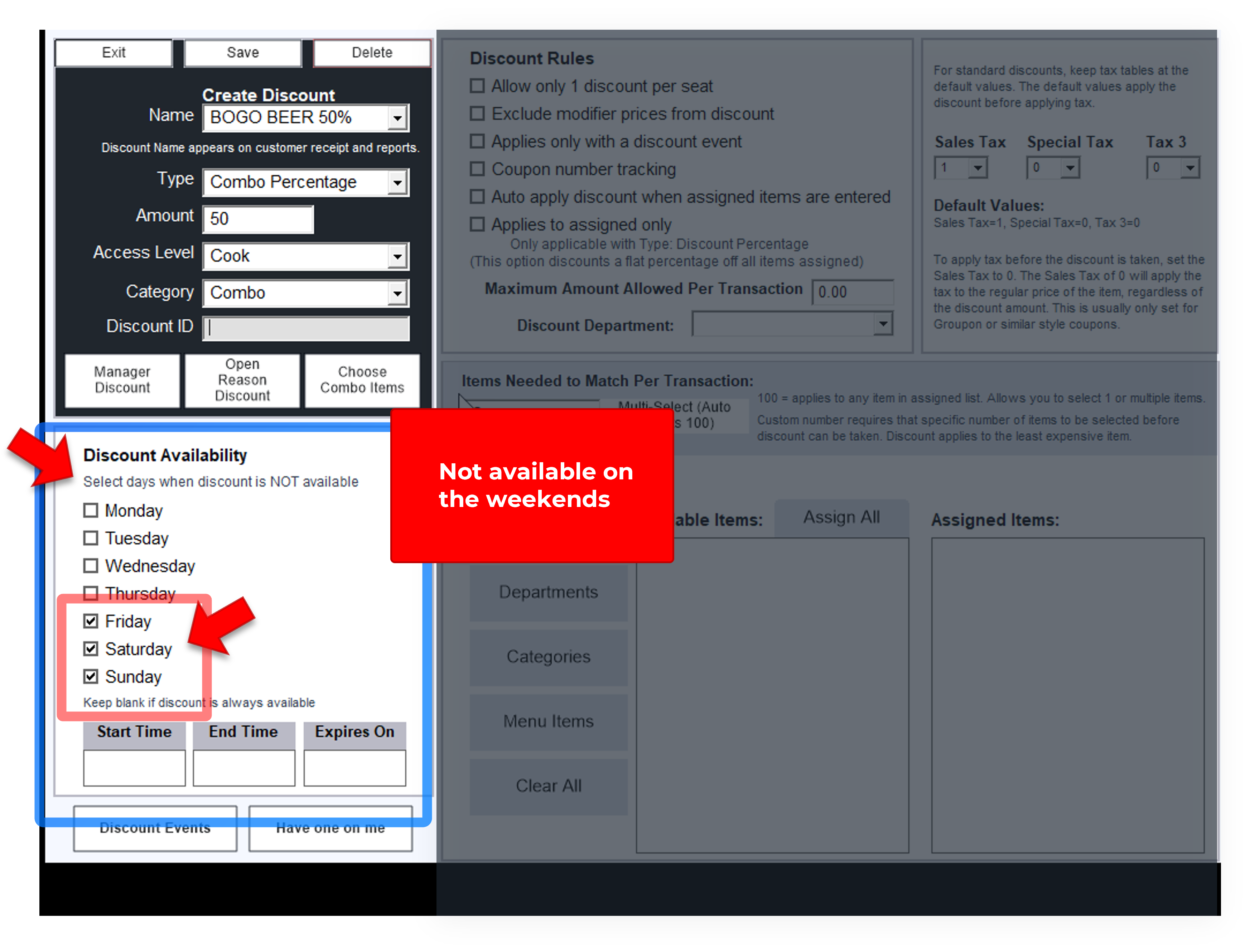
If this combo is available only for specific times/days, use the options on the discounts screen to the left, on the main discounts screen.