
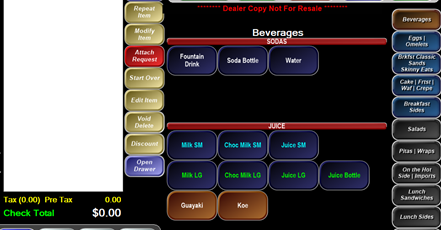
Blank buttons act as label names
|
Blank Buttons: disabled buttons used as separators/labels on the order screen |
Step-by-Step Instructions
- Create a regular menu item with the text Blank in the name.
- The word “Blank” is a trigger in MicroSale to deactivate the button – meaning, the button will not have functionality on the order screen. Blank buttons allow you to organize and separate sections of a screen. As long as the word Blank is a part of the name, you can add other words to it to help differentiate between all of your blanks (assuming you will be creating multiple blank buttons). Such as Soda Blank, Hot Dogs Blank, Bottled Beer Blank
- Create a description for the Button Name (under Menu Item Name) for your blank button that will help describe the group of buttons that will be placed under the blank button.
- Since this button is non-functional, it does not need a Regular Price but you will need to assign it to the proper Category name in order to find it. Set the Department to anything in the dropdown list (since the button is unable to ring in, you will not see this on your reports).
- Save your menu item
- Select Menu Item Button Layout (from the Menu Items and Pricing screen or from the Managers Menu)
- Select the appropriate category on the right side and select (left click) the Blank- Sodas in the Unassigned Menu Items list
- Add the menu item on an unassigned button (left click)
- Drag the button to the screen (holding a right click)
- Select Expand Buttons
- Right click (and hold) the Blank button to expand
- Keep holding until you have reached the desired shape of the button.
- When you are satisfied with the button, click Cancel Options and Save