
- To create a new inventory item, go to Inventory Maintenance
This is where you set up the items that get delivered to the restaurant in its rawest form (such as a case of wine or 50lb case of hamburger meat).
- Create the name of the inventory item and complete all fields. Please reference the following table to properly complete the setup. To easily track and organize items, add the type of product into the product name, such as Cheese Swiss, Beer Budweiser, etc.
Suggestion: Review invoices from your vendors to see how purchased products are named. The product name is the actual inventory item used in the recipes that make up your menu items. To easily track and organize items, add the type of product into the product name, such as Cheese Swiss, Beer Budweiser, etc.
|
Terminology |
Description |
|
Product Name |
The product name is the actual inventory item used in the recipes that make up your menu items. To easily track and organize items, add the type of product into the product name, such as Cheese Swiss, Beer Budweiser, etc.
|
|
Category Name |
Choose the category that best represents the product name. |
|
Bar Code/UPC |
If using a barcode scanner to receive inventory, scan barcode on case (or container that it is purchased by). This is not the barcode number used on individual menu items. |
|
Minimum Level |
Minimum # of cases you want to keep in stock. Example; you must have a 6 pack of beer in your inventory at the very least before reorder. The minimum level would be .25 which is 1/4th of a case (there are 4 6-packs in one case) |
|
Reorder Qty |
Default # of cases to reorder. (Calculate this by taking the maximum # of cases you want in stock less the minimum level.) |
|
Include this item in inventory* |
This is checked by default. Uncheck this for products such as “packs of sugar” that may not be included in inventory. Example: you may not count of cases of straws or cases of trash bags. *referenced in following section |
|
Count item daily for inventory control** |
Check the option if the item will be counted daily. Your most expensive items should be counted daily. You will see that once this option is checked for an inventory item it will check the “Daily” box for that item in the Inventory list. **referenced in following section |
|
Weight Item (Daily Tracking) |
Check the option if the item is weighed by a scale. Specify the weight of the unit. Most commonly used to weigh bottles of alcohol to compare to ounces sold.
|
|
Tare Weight |
Tare weight is the weight of the container of the item being counted by weight |
|
Vender Name |
Using the dropdown, select the correct vendor for the product. |
|
Product Code |
This is the code provided by the vendor on your purchase order (important for EDI) |

|
Terminology |
Description |
|
Count Broken |
When the case is opened, the items may be in a secondary package or unit such as “bottles” for a case of wine or “cans” for a case of sauce. The count broken is used to help you literally count your inventory on hand. |
|
Case (or other unit used under Purchased By) Count |
This is the number of “Count broken” units within each case (or other type of package under “purchased by”. Example: there are 12 bottles within 1 case of wine. Or you have 20 pounds in 1 case of wings. Case Count=12
|
|
Purchase Price |
This is the price you pay for a single case or other unit under “purchased by”. This will change as you add new inventory in through invoices. |
|
Set as Default Vendor |
Check the option if your restaurant typically buys the product from the vendor selected. It will automatically set that product name to that vendor. |
|
Save Alternates |
If the product is purchased occasionally from an alternate vendor, the product’s price or size could be different; the alternate vendor will be listed in the purchase orders (the set as default should NOT be checked when saving the alternate) |
|
Products Located In |
Check all locations where this item is stored. (The item will then print on all appropriate sections of the inventory sheet when printed by location.) |
|
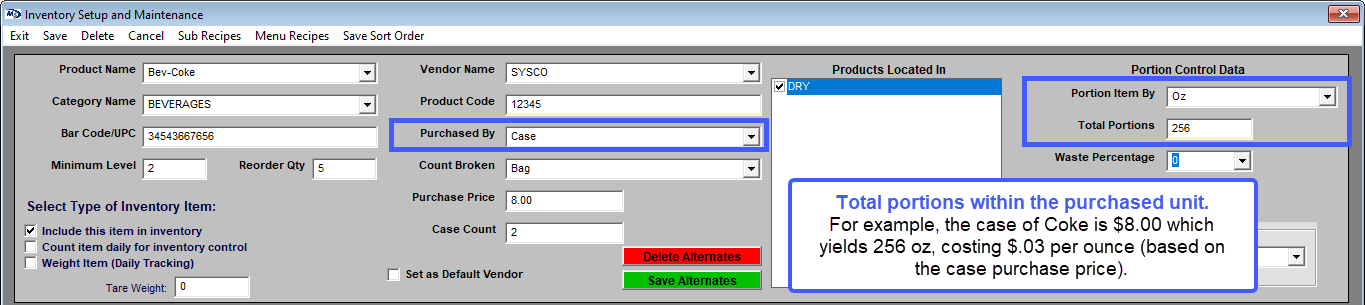
Purchased By |
This is how you buy the product; Example: “Case,” “Gallon”, “Each”. Select the appropriate drop down. (Is this product sold by the case, individually (each), by the gallon, etc.) |
|
Terminology |
Description |
|
Portion Item By |
Select the dropdown and choose how you will portion the item. This portion measurement is used in the recipes for your menu items. The portion by can also be the same as “Case Broken”. For example, Chicken Wings, you may have a case of wings measured by the pound but you sell chicken wings individually in a 10-count meal. Your Portion Item By would be “each”, “piece” or another adjective used to describe the individual portion. If you are selling hamburgers and the case comes in by the pound, you may use “Count Broken as 50lbs” but you portion the item by Oz. If you are selling hamburgers and the case comes in by the pound, you may use “Count Broken as 50lbs” but you portion the item by Oz.
|
|
Total portions |
The total portion is the total number of “portions” you get from the case (or other unit under “purchased by”). Using the above example of chicken wings, there are 125 chicken wings per case.
In a case of beer, the total portion is the same as the case count. However, in other types of inventory items, it will be calculated out by the weight of the total inventory received by the serving weight EXAMPLE: a case of hamburger meat is 50 lbs and the serving size is 16 oz. (50 lbs x 16 oz = 800 portions; 800oz divided by a 16oz portion is a total of 50 portions per box.)
|
|
Waste Percentage |
Enter appropriate percentage of waste. Such as inventory that was spoiled. |
|
Portion Cost |
The portion cost is calculated automatically based on the Waste Percentage |