
- Managers Menu > Inventory > Inventory Maintenance > Menu Recipes
A menu recipe assigns portioned inventory items to the menu items that are sold through your POS system. Recipes provide accurate food cost and usage, as the costs update using the suppliers’ invoices and the inventory automatically depletes as menu items within the POS are sold. You must create recipes for all menu items sold in the POS in order to properly calculate actual vs. ideal usage. To see if any items do not have a recipe assigned, go to Menu Recipes > Unassigned Items.
Assigning a recipe to a menu item
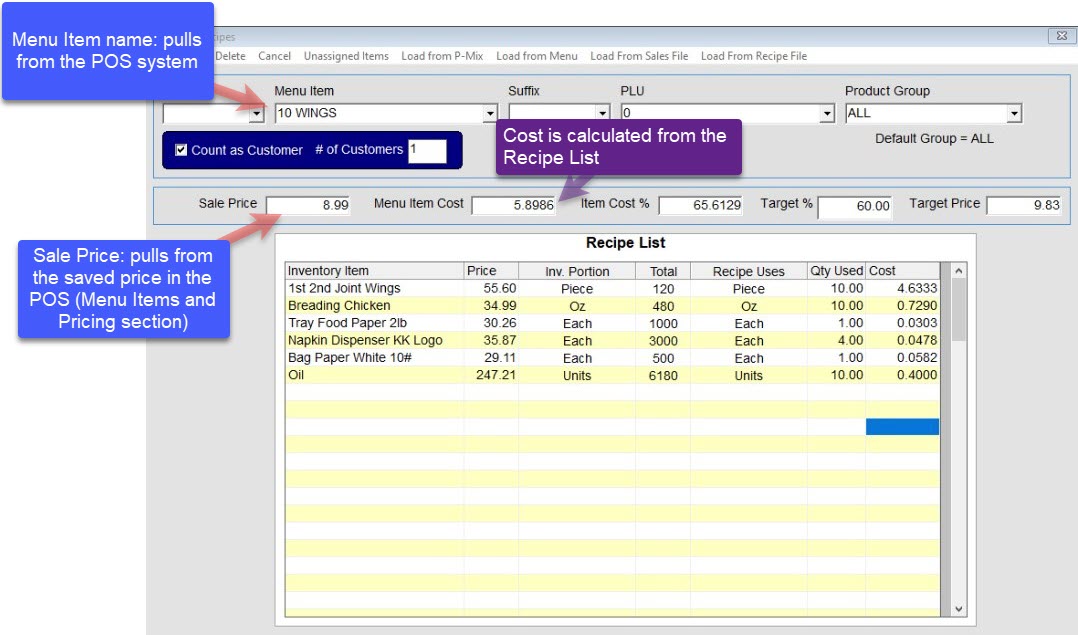
Choose how you want to load the menu items. For the most accurate menu items, choose “Load from Sales File”. This loads ‘actual’ menu items sold with sizes, prefixes, etc., For example, you may have a Cheese Pizza menu item that is connected to multiple sizes of Small, Medium and Large. Alternatively, the menu items that are saved in your menu database are used.
- Use the dropdown and select a menu item (the Menu Item and Sale Price is saved through your POS menu).
- Optional; Check the option for Count as Customer if the menu item should represent one person; for example, a side of fries may not be a good representation of 1 customer, as a customer may order multiple sides.
- Type the number of customers the menu item may represent. Typically this is 1, however, for 50 Wings or large menu items, you may want the item to represent multiple customers.
- Select the blank field under Inventory Item and start typing an inventory item. The software automatically begins populating saved items.
- Click in the Price field; The price, inventory portion and total to automatically populate.
- Select the dropdown under Recipe Uses and choose the appropriate portion. Typically, the “Inv. Portion” and the “Recipes Uses” unit will be the same, however the system allows flexibility in case you need to change the unit/portion.
- Type in the number of units used under Qty Used. The cost is automatically calculated based on the inventory item’s purchase price.
Determining target food cost percentage
If you have a specific target percentage that you wish to achieve, the program will calculate the target price for you.
- Type in a Target % (with a decimal ending the value) and select Enter on your keyboard to view a new target price (Suggested sale price).
- This feature is also useful when a new menu item is created and you do not know the appropriate price to charge the customer.

The Target % is for reference only.
The Sale Price, Target % and Target Prices do not change the price in the POS system.
- To implement the target price: Go to Manager Menu > Menu Maintenance > Menu Items and Pricing > select a menu item, type in the desired price and Save.