
After adding inventory items, the newly added items populate in the Inventory List.
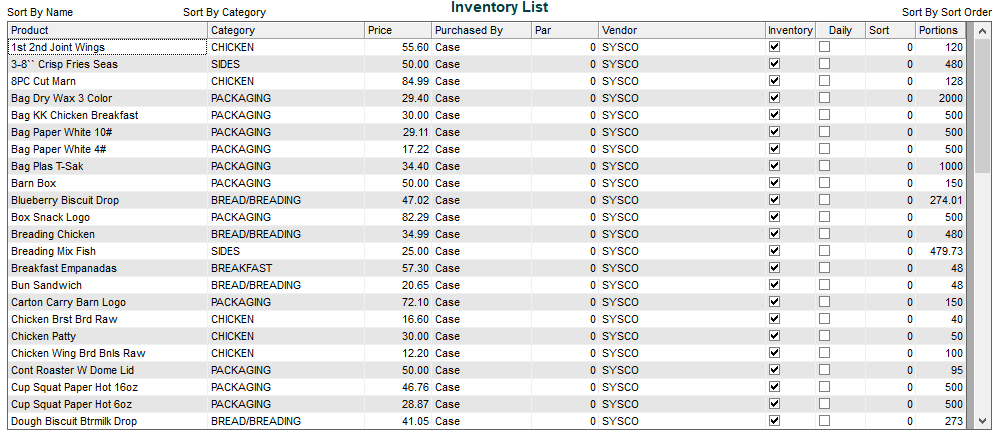
About the Inventory List
The Inventory List provides a summarized list of all inventory items; to edit the inventory items, please use the dropdown menu next to Product Name (described in the previous section).
Editable items in the Inventory List
You can use the inventory list to change whether or not the item(s) are counted in inventory (*referenced in previous section, “Include this item in inventory”), and you can change if this item is counted daily (**referenced in previous section, “Count item daily for inventory control”).
Sorting inventory items
By default, all saved items have a Sort Number of 0; inventory is organized alphabetically or by location alphabetically (depending on your options/settings). The Sort Number is useful when you only want to reorganize specific items. For example, if you have a variety of canned goods (green beans, white beans, navy beans and corn) on the same shelf and you want to show them numerically by 1, 2, 3, 4 so that the items are always listed together.
Changing the Sort Number
- Find an item that needs a sort number other than 0
- Go to the Sort column and click in the field with the 0, in the correct row of the Inventory Item
- You will see a gray outline around the field box when selected; Type in the new sort number
- Select Save Sort located on the tool bar on top of the screen