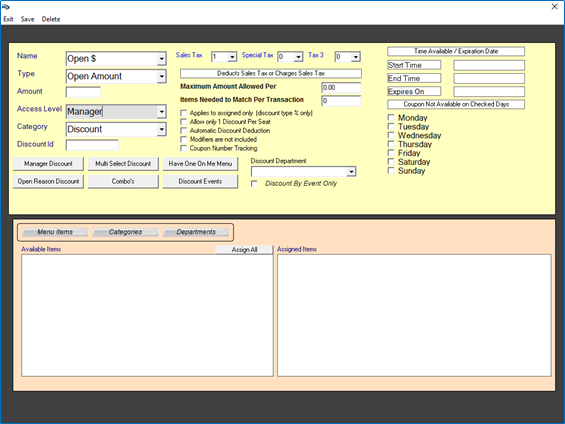
An Open Amount discount will allow you to discount a check by any dollar amount. When you touch this discount name on the order screen, it will prompt a keypad to type in the desired amount.
|
From the setup screen:
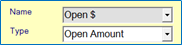
1. Type in a descriptive name for your discount – you will be prompted for a reason (reason will be your Discount Name on the receipt) when using the Open Amount type.
|
|
|
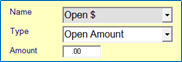
2. Select the dropdown next to Type and choose a discount type that best describes your discount name. To take off an open amount, choose the Type of Open Amount.
|
|
|
3. Leave the Amount blank since you will put in a custom amount on the order screen. |
|
|
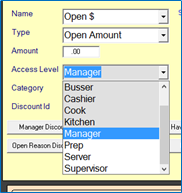
4. Next to Access Level, decide who should be able to apply this discount – usually you will only allow an assistant manager or higher to apply discounts in order to prevent unauthorized discounts from being applied to checks. |
|
|
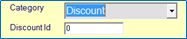
5. Choose the best category that describes what you just made – for example, it could be a coupon, discount, service charge, etc. In this example, choose the category Discount.
|
|
|
6. Select Save in the top left corner a. After selecting Save, either continue adding discounts or Exit the screen.
|
|
|
Reference the screenshot below for proper setup. |
|