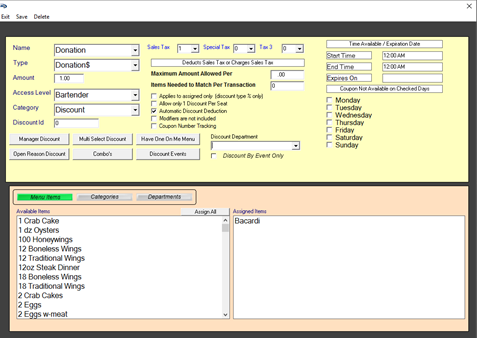
Donation$: Adds on a price to the check as a donation.
Donation%: Adds on a percentage of the check as a donation.
Setting up the Donation: Manager’s Menu > Discounts, Gratuity, Maintenance
- Create a name for the Donation. This name will be shown on the guest check
- Select the Type. Choose Donation % or Donation $
- Select the Amount. Choose a dollar amount or percentage based on the type chosen. Do not put in a $ or % symbol.
- Select the Access Level for the employees that may use this donation. If it should be automatic, set this access level to Server or Bartender.
- Set the Category to Discount
- Set the Sales Tax to 0
- Keep all other Setting at the Default on the screen unless other specifications are needed
- Select the menu items that qualify for the donation
- Check the option Automatic Discount Deduction
- Save
- Exit
Example on Proper Setup: