An occupation (or occupational) tax may be collected, depending on your city. An occupation tax is essential a "license tax", or a tax paid as a cost of doing business. In some cities, you are allowed to offset this tax by passing it to the customer's bill as a separate line item. Typically, the occupation tax is calculated before any state and local taxes are calculated.
For example:
| Net amount of check | $50.00 |
| Occupation tax (2%) | $1.00 |
| Subtotal | $51.00 |
| State Tax (7%) | $3.57 |
| Final Total | $54.57 |
Due to the complexity of this setup, we recommend a MicroSale representative setting this tax up for you. However, if you would like to set it up yourself, please follow the steps below.
Setting up occupation tax
- Go to the Managers Menu > Register Setup > Sales Tax
- Put the State Tax within the first “Sales Tax” field
- Put the “Occupational” Tax within the second “Sales Tax” field directly beneath the previous tax
- When finished, select “Save” from the top, left of the screen
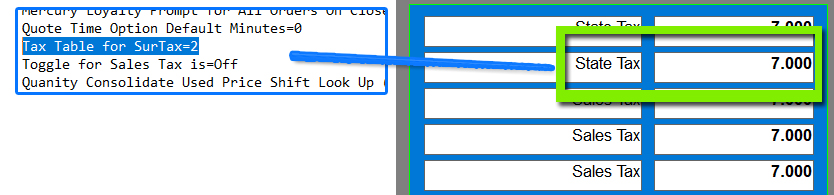
Configuring the occupational tax
If you do not already have this file, you can find it attached to this article (for Version 10 only)
- Locate the functions.ini file attached (Version 10 only) or located in the m$config.ini file for Version 9 and Version 8.
- Scroll to the bottom section labeled “[General]”
- Find the entry “Tax Table for SurTax=0”
- Change the =0 to =1,2,3 etc. (for the proper sales tax table that needs to be used. The number references the sales tax in the top left corner of the Tax Setup area)
- Select “File”, “Save”, and then “Exit” from the top, left side of the window
- Paste the functions.ini file into the C:// Program Files x86 > Micro$ale > INI Files (Side Note: the INI Files List is an archived, inactive list of INI files. The INI Files folder is active and used in the MicroSale program)
- Restart MicroSale
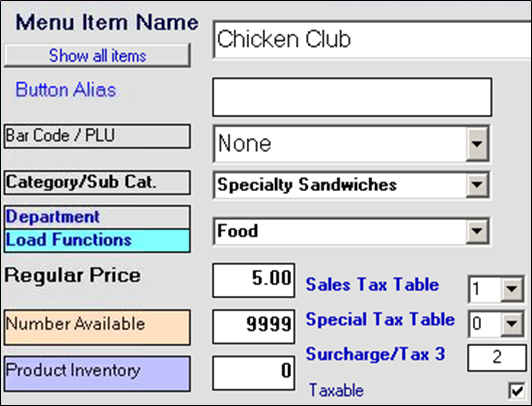
Configuring Tax per Menu Item
- Go to the Managers Menu > Menu Maintenance > Menu Items and Pricing
- Select a menu item that is taxable
- Select the checkbox for “Taxable” to enable the tax table selection section
- Enter “2” into the “Surcharge/Tax 3” field (if you are using "2" for the tax table).
- Note: It is important that you DO NOT enter a decimal into the “Surcharge/Tax 3” field as this will create a surcharge for the guest check instead of a tax (for example, 2.0 would add $2.00 where 2 would reference tax table 2)
- Select the “Save” button
- Repeat for each applicable item