
Often bars make alcoholic items tax inclusive, which means that the price of the menu item already includes the tax. This is beneficial, as you can make your drinks whole dollar amounts and eliminate the need for change. MicroSale automatically backs out the value of the tax for reporting purposes to give you an accurate reading of your alcohol tax.
Example of a tax inclusive item:
A customer is charged $3.00 for a Budweiser. With a tax rate of 7%, the reports show that the Budweiser was sold at $2.80 and collected $.20 in tax (.196 rounded up).
Go to: Managers Menu > Menu Maintenance > Menu Items and Pricing
- In the Menu Items and Pricing screen, navigate to the appropriate menu item.
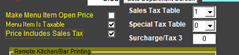
- In the Sales Tax Table area, ensure the appropriate sales tax table is set. In the image below, the item is assigned to the Sales Tax Table "1".
- Check the option next to “Price Includes Sales Tax”
- Save when completed
Smart Tax
By default, the system is set for “Smart Tax”.
With smart tax, tax inclusive items are recalculated with a standard tax rate when both food and alcohol are on a check. Essentially, tax inclusive items are flipped, generating additional revenue. For example, the $3.00 Budweiser ($2.80 for the net amount) now becomes $3.00 plus 7%, making the Budweiser $3.21.
This is useful for restaurants who would like alcohol-only checks to be Tax Included to optimize speed, but for tickets with Drinks and Food to be Tax Not Included. This is useful for restaurants who would like alcohol-only checks to be Tax Included, but tickets with alcohol and food to be Tax Not Included.
To disable smart tax, go to Register Options > Full Service > Turn off smart tax