Phone orders give you the ability to take an order from the customer and place it on hold for a future pickup or delivery time. However, sometimes customers may wish to place an order ahead of time but later eat in. For example, a busy construction worker has limited time for a lunch break and would like to pre-order his lunch so that it is ready to eat when he arrives during his break.
How to mark a Phone Order as Dine in
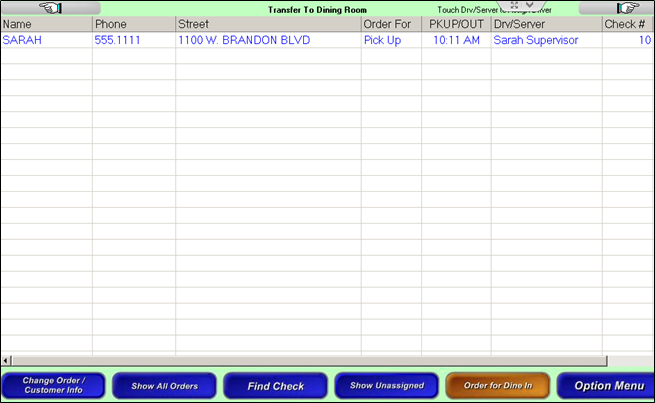
Marking a phone order for “Dine in” will move the order from the “Access Phone Orders” screen to the table layout or open tab screen (depending on current system configuration):
Note: if you are currently in a Quick Service environment and need to mark an order for “Dine In” for tax collection purposes or for packaging procedures this function will ONLY bring you to the order screen to PAY for the order. It will NOT allow the order to remain on hold any longer.
- From the Ordering Screen select “Phone Orders” and then “Access Phone Orders”
- Select the orange button marked “Order for Dine In” (Note: At the top, center of the screen the words “Transfer to Dining Room” appear)
- Select the phone order you wish to mark as “Dine in”
- Note: Whoever is performing this function will also be the one who receives this order within their table layout or open tab listing.
- The order is now placed within your check listing and you are now responsible for it.