Simplify & streamline your takeout operation
It can be tough to keep track of all your takeout orders when they come in through different channels - over the phone, through your website, or through third-party delivery - MicroSale consolidates all of your orders on a single, easy-to-manage dashboard.
Phone Order Management
Takeout Order Overview
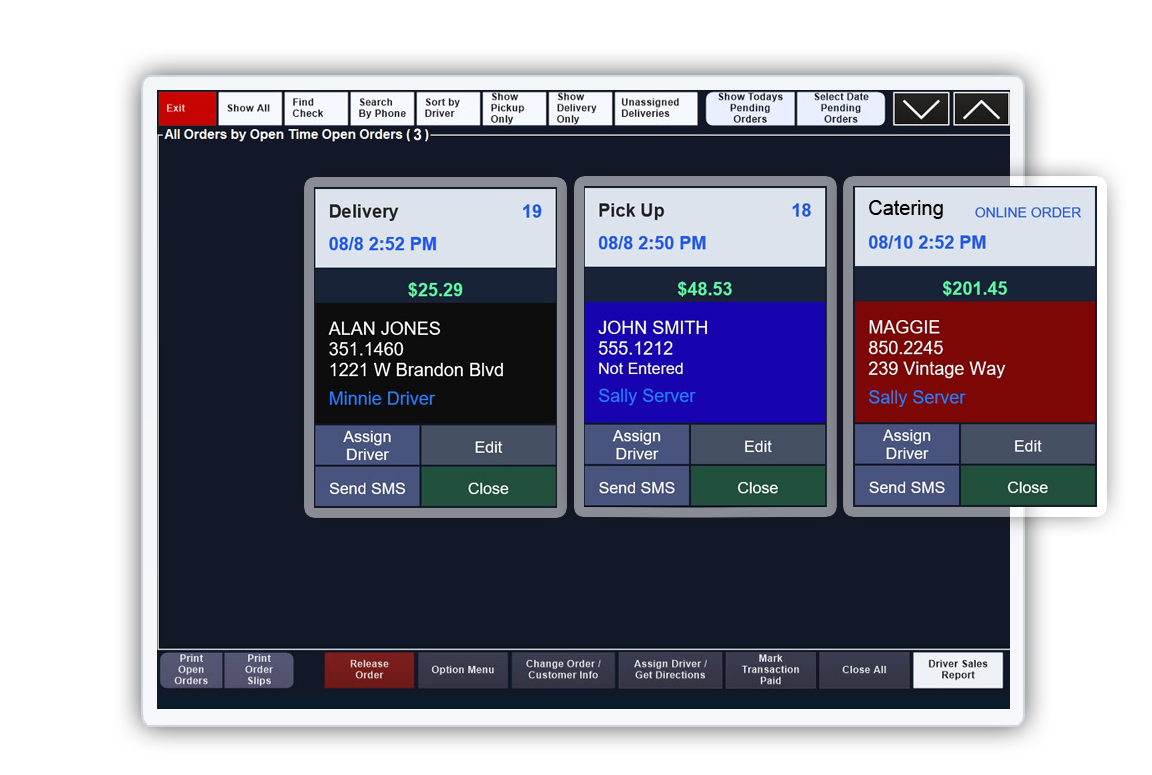
On the management screen, each order button provides a snapshot of the order, including customer name, delivery/pickup status, check total, and the order taker or assigned driver. Use the toolbar for sorting, managing deliveries, and other tasks.
Takeout orders are color-coded for easy identification:
- Black Button: Order is active and in production.
- Blue Button: Order is active but not yet in production, possibly pending for a specific pickup/delivery time.
- Red Button: Preorder set for a future day. Preorders are automatically printed the night before to notify the kitchen. Do not close preorders at the end of the night.
Order Buttons Information:
- Contact information is displayed on the upper left. Change details using the Customer Order / Customer Info button on the toolbar.
- Use blue buttons on the order button to edit the check, reassign a driver, change the destination, and edit/close the check.
- The employee who placed the order is in the upper right corner.
- The promised pickup time is displayed in blue under contact information.
Phone Order Screen Toolbar
Utilize the toolbar for various functions:
- Change Order / Customer Info: Modify contact information, print customer receipts, add prepayment, or a deposit.
- Release Order: Manually release pending orders to the kitchen. Touch the order to release.
- Show All Orders: Toggle between delivery, pickup, preorders, and unassigned delivery orders.
- Assign Driver / Get Directions: Used to dispatch delivery orders; allows you to view open delivery orders on a visual map and get directions from stop to stop.
- Close All: Quickly add tips for delivery drivers and/or close multiple orders at once. At the end of each driver's shift, enter all tips in one place.
Option Menu
The option menu provides additional functions:
- Search By: Search open phone orders using selected criteria.
- Sort By: Resort open orders by time or group pickup and delivery orders together.
