
If there are multiple customers in a single vehicle in the drive-thru, or customers who order together yet want to pay separately, you can use Pay by Tray.
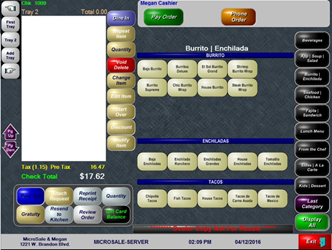
If you know upfront that the customers are ordering separately, you can tap Add Tray on the Order Screen
Over the virtual receipt lists the Tray # and Tray (or Seat) Total. To make it easier to hand out the orders, you can name the Trays (using the Customer Name function button)
- When all orders are entered, tap Pay Order
- A consolidate payment total is provided. To pay separately, tap on Pay by Tray
- Select a Tray # or Customer Name and then tap on the appropriate tender type (payment type)
- Continue these steps until all trays are paid.
- The Payment Screen exits automatically when all trays have been paid and finalized.
---
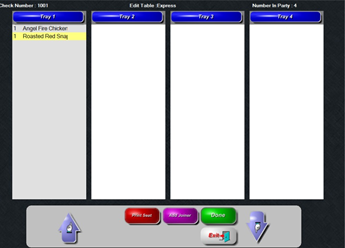
If a guest does not mention up front that the order needs to be on multiple trays, or tickets, you can separate the items by pressing Review Order
|
1. After you are finished taking the order, press Review Order |
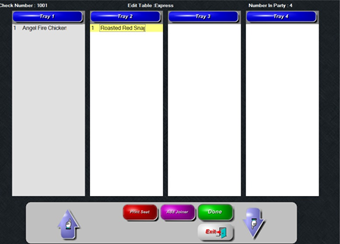
2. Press Add Joiner to add as many trays as needed |
|
3. Highlight an item, or multiple items, and touch the white area to move the item(s) to a different tray
|
4. Press Done when completed |

Please follow the next section for paying out the trays