
In the Quick Bar register settings, you’ll login and immediately be placed on the order screen.
Starting a tab (without a credit card)
- You can either select Start Tab first or enter in the menu items first
- If you have entered the menu items before selecting Start Tab, select Start Tab and then Start Tab again to type in a tab name
Starting a tab with a credit card (using preauthorization, holding the card data on file)
WARNING! Check with your processor before enabling preauthorization in MicroSale. Not all processors support preauthorization
- Select Start Tab (the following prompt appears)
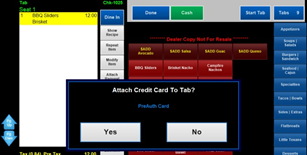
Choosing Yes:
Prompts to insert the card into the EMV device
- Please read the message on the device
- Remove the card when prompted
- Refer back to the POS screen to complete the start of the tab...
- If the card is pinged successfully, the tab is named from the credit card (Select Yes). Select No to use a different name while continuing to hold the card data
- If the card is not pinged successfully, select Start Tab and try again, or you can open the tab without attaching the credit card to the tab (select No, when prompted “Attached Credit Card to Tab”?
Choosing No;
Prompts to type in a tab name
- Credit card information is not stored. You will need to collect the credit card at the time of payment.
Starting a tab from the Server Menu
- Choose the appropriate button (bar menu, next customer, dining room, go order)
- Enter in menu items
- Select Done
More Options on the Server Menu:
- From the Server Menu, you can get back to the order screen by selecting Bar Menu or Next Customer
- Select Dining Room to assign a tab from the table layout
- Go Order is used for entering in To Go orders. When using To Go, the check is marked as “to go” in the kitchen. Unless you have the option to set a go order as an open order, the system will force you to pay the order and will not allow it to be placed on hold
FYI
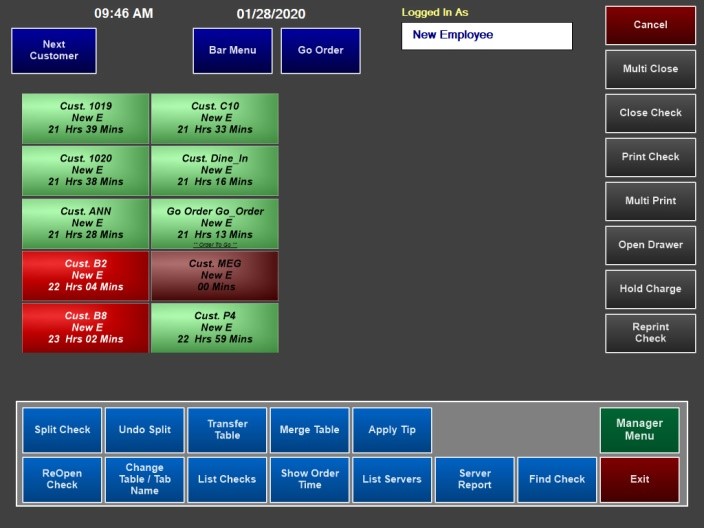
From the Server Menu, tabs with stored credit cards are displayed with a maroon background color