Closing a check on the table layout
- From the table layout you can either select the table and then Close Check from the order screen, or you can use the shortcut, Close, on the table layout
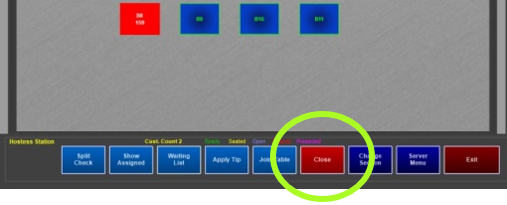
Using ‘Close’ bypasses the order screen and takes you to the payment screen - Select Close and then select the table. If the check has not yet been printed, you must print the check before closing the order.
- Close the check using the appropriate payment media
Closing a check from the server menu
From the Server Menu, you can use the shortcut, Close Check. Using ‘Close Check’ bypasses the order screen and takes you to the payment screen
Option 2: Select the check (which will take you to the order screen) and then select Close Check
- Select Close Check and then select the check you need to close
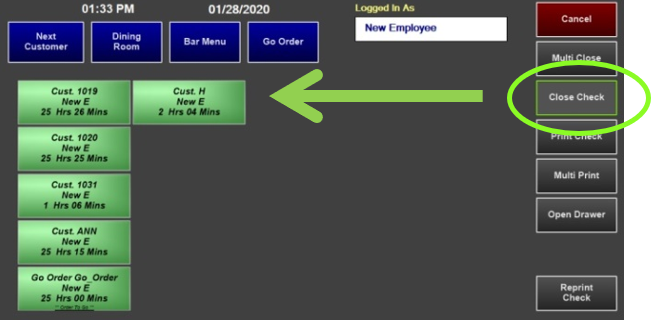
You will bypass the order screen and be placed on the payment screen -
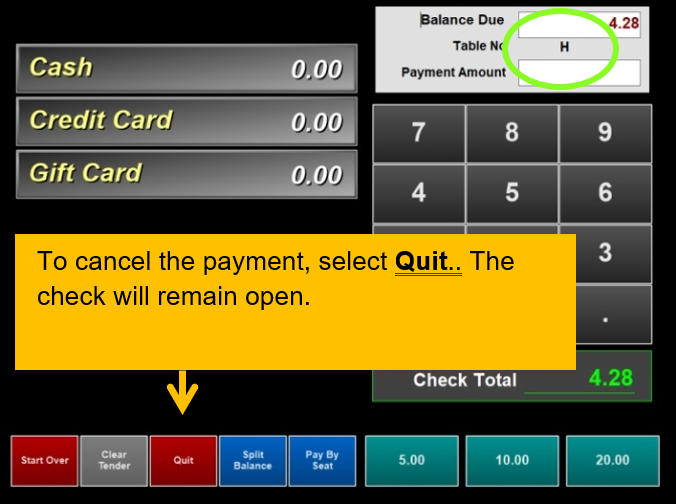
Verify you are on the correct check/table number by viewing the Table No.
-
Close the check using the appropriate payment media
Closing multiple checks at once to cash
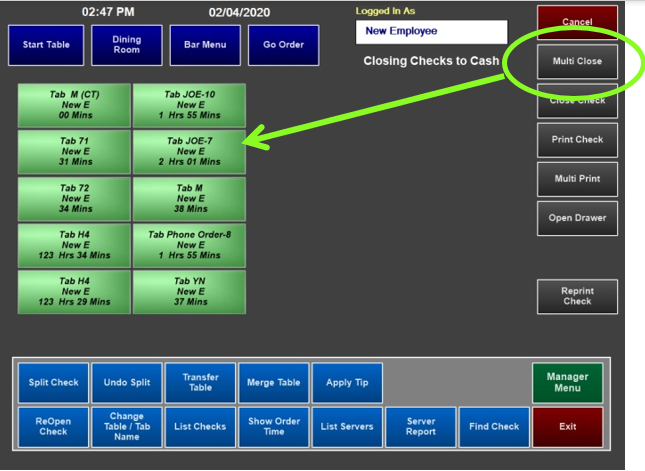
From the server menu, you can quickly close multiple checks to cash at once. Depending on your system settings, checks must be printed prior to closing the checks.
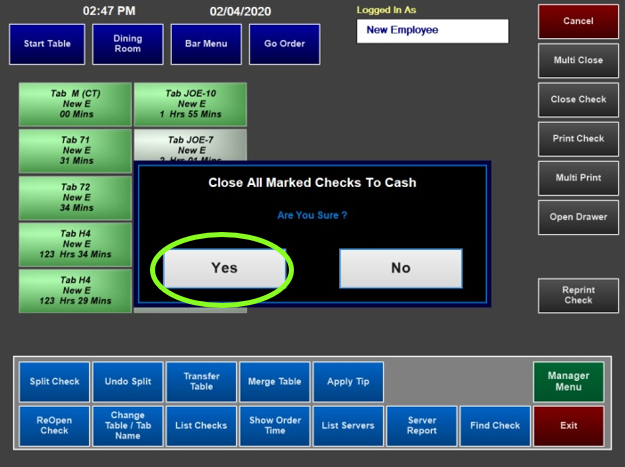
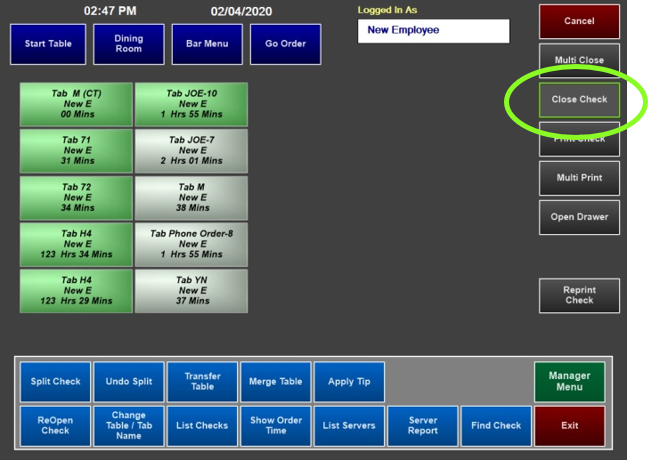
- Select Multi Close first and then select the checks you need to close (the check turns light green when selected)
- Select Close Check
- Select Yes to close the checks selected to cash