
You can print a guest check (customer receipt) from multiple places;
- On the tab or table, Print Check is listed in the upper right corner of the order screen
- You can use the shortcut, Print, on the table layout. Select Print and then the appropriate table
- You can use the shortcut, Print Check, on the Server Menu. Select Print Check and then the appropriate check
Printing a receipt by seat
By default, one receipt prints and totals each seat separately. To print separate receipts by seat, use one of the two options below:
Using Split Check to print receipts separately per seat
- From the Server Menu, touch Split Check and select the check
- On the screen, each seat is shown. Touch Done. Each seat is now separated and you can print the receipts separately using Print Check or Multi-Print.
or use Print by Seat (function button)
- Managers Menu > Register Setup > Terminal Configuration > Edit Order Screen Buttons > Add Print by Seat to a button and Save
- Go to the check
- Select Print By Seat. All checks will print separately
Printing multiple receipts at once
- From the server menu, you can quickly print multiple checks at once.
- Select Multi Print and then the checks you need to print (turns purple when selected)
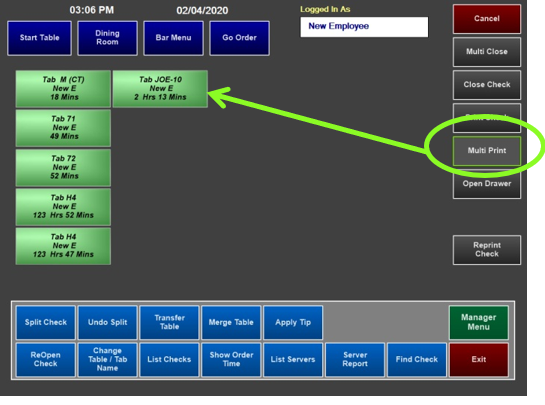
- Select Print Check
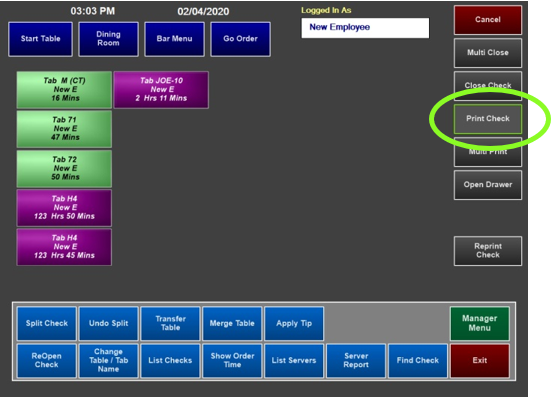
- Selected checks print on the receipt printer attached to the terminal
Reprinting receipts
Reprint Receipt
You can reprint a customer receipt or credit card slip by going to the Server Menu > Reprint Check or by adding a Reprint Receipt function on the order screen.
- From the Server Menu: Select Reprint Check and touch the appropriate check or reprint the last receipt by selecting Print Last Receipt
- From the order screen (using the function button): Go to the order screen and select Reprint Receipt
Reprint credit card slip
You can reprint a customer receipt or credit card slip by going to the Server Menu > Print CC Slip or by adding a Reprint CC Slip function on the order screen.
- From the Server Menu: Select Print CC Slip and touch the appropriate check
- From the order screen (using the function button): Go to the order screen and select Print CC Slip